How to Burn and Normalize MP3 to Audio CD in Ubuntu Linux

The most usual (and popular!) way to create a “mixed-tape” Audio CD is to burn it from a collection of MP3 song taken of several sources.

However as these mp3 are ripped from several sources, there would be inconsistencies of the volume loudness which would create an annoyance if one had to readjust the CD player volume from song-to-song.

A “Normalization” process would automatically fixed the audio so that all song would have the same amount of volume, but sadly the default Serpentine Audio CD creator that comes with Ubuntu does not support normalization.

How to Normalize MP3 song
First of all open a terminal and install normalize-audio package :

sudo apt-get install normalize-audio

Then change directory to your mp3 collections to be burned and execute:

normalize-audio -m -v  *.mp3

normalize-audio will then compute the files level one-by-one and then will apply normalization on all mp3 files.

You can then use your favorite CD burner application (like Serpentine) to burn the normalized MP3 files to make an audio CD.

normalize-audio also supports ogg files for normalization.

Happy burning!

[tags]mp3,audiocd,burning,cd burn,audio cd,ogg,vorbis,opensource,open source,gutsy,gutsy gibbon,ubuntu[/tags]
How to Recover photo files from SD Card / MMC with PhotoRec

Among the main cause for loosing digital photographs are corrupted filesystems, and accidental SD card formatting. These photographs are still recoverable using photo recovery softwares available on the internet.

However, a quick survey on the internet reveals that most of the commercially available photo recovery software are either too expensive or is not available for Linux users.

How to Recover photo files with Photorec
Enter Photorec, a free and open source file recovery software from CGSecurity. As the name implies, photorec was originally developed to recover photo files from flash/memory card.

It has since been expanded to support more file types covering popular document files (doc,xls,mdb), archives (zip,rar,gz,bz2,tar) and multimedia files (mp3,wav,avi,mpeg).

Here’s how to recover your lost files using Photorec :

Continue reading “How to Recover photo files from SD Card / MMC with PhotoRec”

How to open Microsoft OpenXML *.docx file in OpenOffice Ubuntu

Now you can open and read documents written in the notorious Microsoft Office OpenXML (*.docx) with OpenOffice.org OpenXML Translator.

What you need to do is download the OpenXML translator from GetDeb.net and install it in your Ubuntu Linux operating system.

Your OpenOffice.org application should be able to read documents files in *.docx format after this. Note that you need to restart your OpenOffice.org Writer if you can’t see the Microsoft Office 2007 OpenXML option under the Load/Save dialog.

Guide for other Linux distribution can be found here – How to open Microsoft OpenXML docx documents in OpenOffice

[tags]openoffice,openoffice.org,microsoft,openxml,open source, open standard,office,microsoft office,ubuntu,linux[/tags]

How to create a limited (Guest) User Account in Ubuntu Linux

It is always a good idea to create a limited guest user account when you are sharing the computer with multiple users. This is to prevent accidental (or intentional) tampering of system configuration which can prevent your Ubuntu Linux operating system from running properly.

Here’s how to setup a limited guest account for your Ubuntu Linux operating system. This guide assumes you are adding a guest account user for your children to play with.

How to Add a Limited User Account

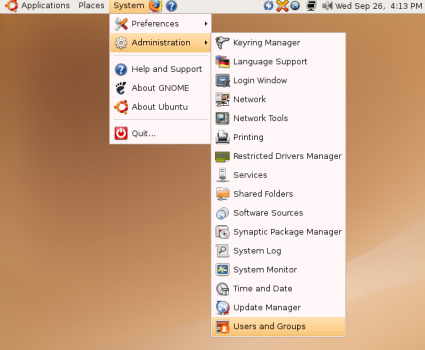
1. From Desktop, go to System, Administration and select “Users and Groups”.

users.jpg

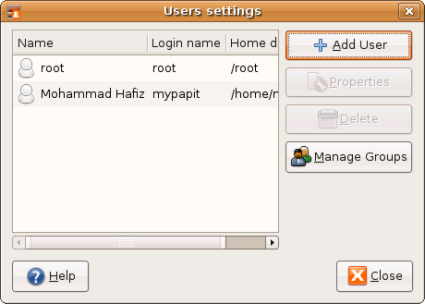
2. You will be shown with user settings dialog. Click “Add User” button

user0.jpg

3. Fill in the new user details
Continue reading “How to create a limited (Guest) User Account in Ubuntu Linux”

How to use FTP in Ubuntu Linux

Believe it or not, I’ve been getting a lot of query hits lately for instruction to use FTP on Ubuntu Linux. So today I decided to write a simple guide for using FTP in Ubuntu.

How to connect to an FTP Server
Firstly, you should note that you do not need to install anything special in order to connect to ftp server from Ubuntu.

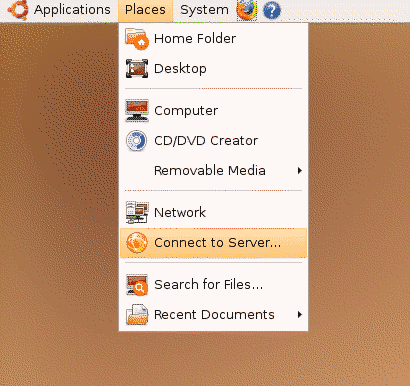
What you need to do is to is to select “Places” menu from Desktop, then select “Connect to Server…”

cts-small.png

Then you will see a dialog prompting you to enter ftp connection details. For this exercise we will start off by connecting to a Public FTP Server which does not require user login or password.
Continue reading “How to use FTP in Ubuntu Linux”