How to open Microsoft OpenXML *.docx file in OpenOffice Ubuntu

Now you can open and read documents written in the notorious Microsoft Office OpenXML (*.docx) with OpenOffice.org OpenXML Translator.

What you need to do is download the OpenXML translator from GetDeb.net and install it in your Ubuntu Linux operating system.

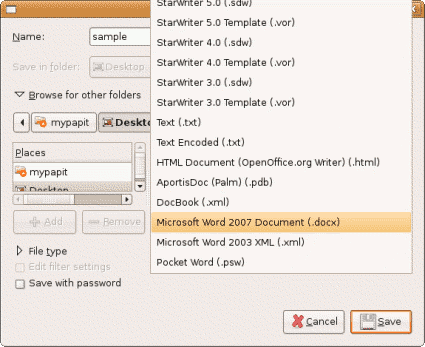
Your OpenOffice.org application should be able to read documents files in *.docx format after this. Note that you need to restart your OpenOffice.org Writer if you can’t see the Microsoft Office 2007 OpenXML option under the Load/Save dialog.

Guide for other Linux distribution can be found here – How to open Microsoft OpenXML docx documents in OpenOffice

[tags]openoffice,openoffice.org,microsoft,openxml,open source, open standard,office,microsoft office,ubuntu,linux[/tags]

How to create a limited (Guest) User Account in Ubuntu Linux

It is always a good idea to create a limited guest user account when you are sharing the computer with multiple users. This is to prevent accidental (or intentional) tampering of system configuration which can prevent your Ubuntu Linux operating system from running properly.

Here’s how to setup a limited guest account for your Ubuntu Linux operating system. This guide assumes you are adding a guest account user for your children to play with.

How to Add a Limited User Account

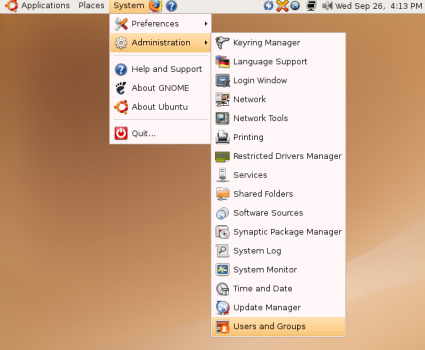
1. From Desktop, go to System, Administration and select “Users and Groups”.

users.jpg

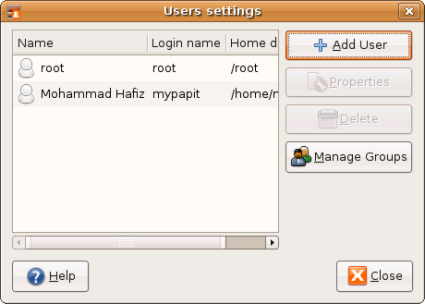
2. You will be shown with user settings dialog. Click “Add User” button

user0.jpg

3. Fill in the new user details
Continue reading “How to create a limited (Guest) User Account in Ubuntu Linux”

How to use FTP in Ubuntu Linux

Believe it or not, I’ve been getting a lot of query hits lately for instruction to use FTP on Ubuntu Linux. So today I decided to write a simple guide for using FTP in Ubuntu.

How to connect to an FTP Server
Firstly, you should note that you do not need to install anything special in order to connect to ftp server from Ubuntu.

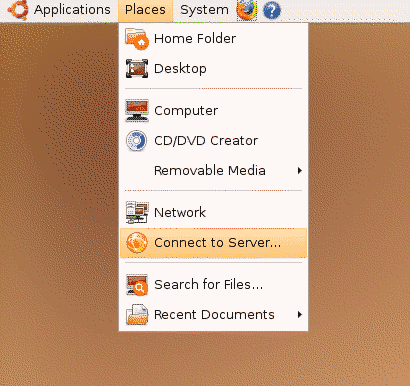
What you need to do is to is to select “Places” menu from Desktop, then select “Connect to Server…”

cts-small.png

Then you will see a dialog prompting you to enter ftp connection details. For this exercise we will start off by connecting to a Public FTP Server which does not require user login or password.
Continue reading “How to use FTP in Ubuntu Linux”

Track Satellites in Real-Time on the Sky with GPredict

I found another great free and open source software (FOSS) which lets me track satellites location orbiting around earth. The software is named GPredict for its capability to predict satellites orbit and footprint on the sky.

My first impression of this software itself makes me go wow, as the software is able to track known satellites path around the earth which includes GPS satellites, Weather Satellites, Iridium satellites, geostationary,military and satellites used for scientific purpose.

GPredict-ing GPS Satellites
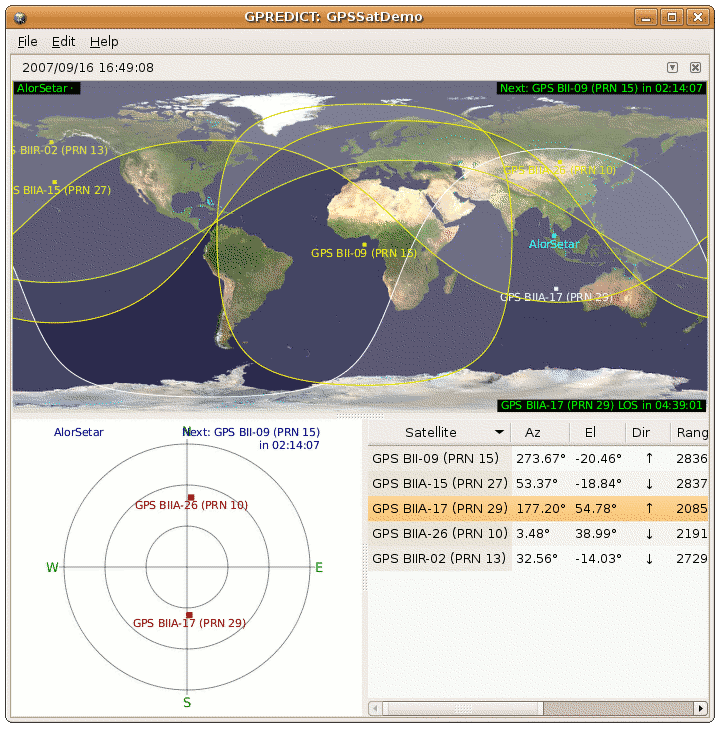
To test the accuracy of GPredict, I whipped out a GPS-capable device which runs Garmin Que navigation software. The Garmin device has an informative screen which represent GPS satellites visible on the sky according to their PRN id.

Then I created a module on GPredict which tracks those satellites. The GPredict results seems to tally with the Garmin Que results! Moreover GPredict is able to tell GPS satellites that Garmin Que has missed on its initial sweeps, which then appears on the Que screen shortly after.

Predicting Satellite Pass
GPredict also able to tell when certain satellites will pass over a designated area, it also able to estimate the satellite visibility duration — a valueable information if you’re into satellite hunting or are using satellites to communicate.

GPredict Screenshot

predictamateurmy.png

GPredict Downloads
GPredict is licensed under the GNU General Public License and can be downloaded from its official website : Groundstation GPredict.

A Microsoft Windows port is available from GPredict Sourceforge project page.

GPredict is also available in the Debian and Ubuntu Gutsy Gibbon / Feisty Fawn apt-get repository.

ps: You can also view the location of MEASAT-1, MEASAT-2 astro satellites, though it is rather pointless to track since both satellites are positioned in a geostationary orbit.

[tags]gps,satellites,linux,opensource,open source,feisty fawn,gutsy,ubuntu,debian,ham,hamradio,foss,gnu gpl[/tags]

How to open Microsoft OpenXML docx documents in OpenOffice

As of this time of this writing, the OpenOffice.org package included with Ubuntu Festy Fawn, Ubuntu Gutsy Gibbon and Debian Etch still does not support opening Microsoft Office OpenXML (docx) document format.

Though the use of docx files are HIGHLY DISCOURAGED, it is still important for us to be able to read document in this format in-case if somebody forwarded docx files to us.

Here are some easy steps to follow in order to enable OpenOffice.org to read OpenXML docx files :

  • Download odf_filter.tar.bz2 file, and unzip it
  • The archive contains 4 additional files, MOOXFilter_cpp.xcu, MOOXTypeDetection.xcu, OdfConverter and README.txt
  • Follow instructions in README.txt and copy the 3 files into Openoffice installation directory as outlined below


sudo cp OdfConverter /usr/lib/openoffice/program/

sudo cp MOOXFilter_cpp.xcu

  • usr/lib/openoffice/share/registry/modules/org/openoffice/TypeDetection/Filter/

    sudo cp MOOXTypeDetection.xcu /usr/lib/openoffice/share/registry/modules/org/openoffice/TypeDetection/Types/

  • openoffice_docx.png

    After that, your Openoffice.org installation should be able to read/open Microsoft Office 2007 OpenXML docx file without any problems.

    Drawbacks
    This trick only works on Document (docx) files but not on Presentation (pptx) and Spreadsheet files (xslx).

    Original source – OpenOffice. OpenXML Translator

    [tags]docx,openxml,openoffice,feisty,feisty fawn,gutsy,gutsy gibbon,openoffice.org,microsoft,office,microsoft office[/tags]