Lanmap – handy tool to map your Local Area Network (LAN) automatically

I discovered lanmap during my stay in a hotel during the Merdeka holidays. This little handy tool can generate local area network map in PNG,SVG and GIF format by listening to network traffic from network interfaces.

lanmap does this by putting network interface in promiscuous mode and representing the data its sees into a 2-d human-readable network graph. It has the advantage of identifying the network traffic being passed around the network along with the name and the operating system of the host which are represented on the graphical representation as well.

My House Local Area Network
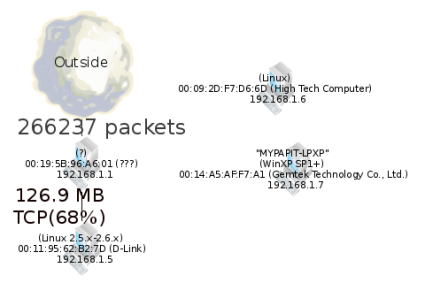
lanmap2.png

Local Area Network from a Hotel that I stayed in
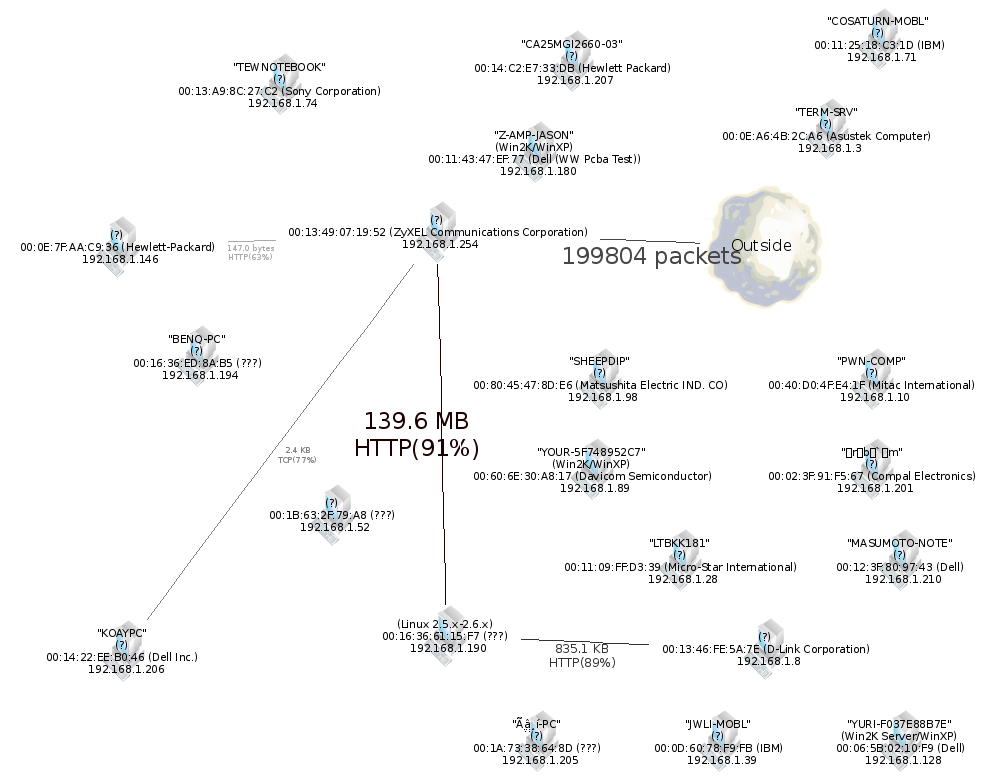
lanmap2.png

lanmap works under Linux, BSD, Windows and OS X operating systems. It requires libpcap library for capturing packets and graphviz visualization library to generate 2-d network graphs.

You can download lanmap from its official website. Lanmap is licensed under the GNU General Public License version 2.0.

[tags]lanmap,network,nmap,ubuntu,ethernet,internet,ubuntu,linux,feisty[/tags]
How to write into NTFS partition in Ubuntu

As disk storage capacity increases over time, more and more Microsoft Windows user prefer to choose NTFS over FAT32 as their primary filesystem as the latter is inefficient in handling large storage capacity.

Unfortunately by default, Ubuntu only mounts NTFS volume as read-only, preventing users from transferring files between their Linux and Windows partitions.

How to mount writable NTFS partitions
However now you can easily mount writable NTFS partitions easily with ntfs-3g filesystem driver. Here’s how to do it under Ubuntu.

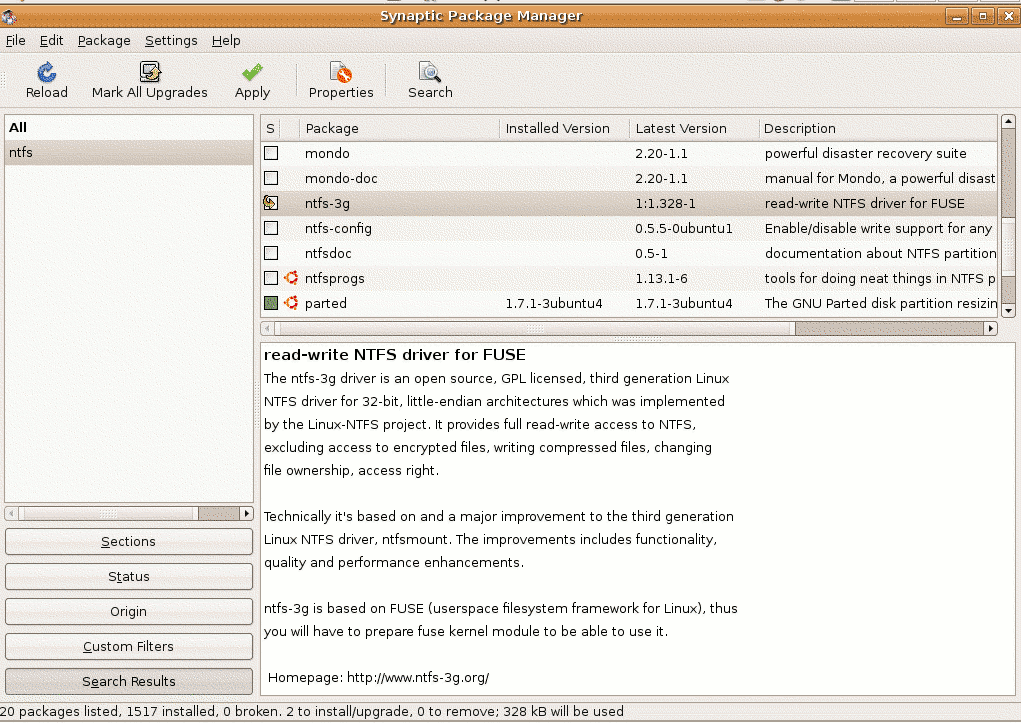
ntfs3gtn.png
  1. First from the Desktop, go to System->Administration->Synaptic Package Manager. Search for ntfs-3g and install it. Close synaptic once it finished with installation.
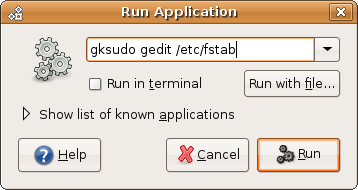
  2. The next step would involve editing /etc/fstab file to use ntfs-3g filesystem driver. From the Desktop, press ALT-F2, type “gksudo gedit /etc/fstab”
    runapp.png

  3. Find lines with ‘ntfs’ and replace it with ‘ntfs-3g’ and save the file
  4. Remount all ntfs partitions to test the modification, the easiest way to do it is to reboot the computer and try copying file into ntfs partition using the default Gnome file browser (Nautilus). You’re done!

[tags]ntfs,filesystem,windows,opensource, linux, ubuntu, gutsy, feisty,feisty fawn, gutsy gibbon,open source[/tags]

The Next Ubuntu 8.04 release announced, Hardy Heron

The next Ubuntu release after the upcoming Gutsy Gibbon was announced in the Ubuntu Fridge yesterday.

Schedule to be released sometimes next year, Ubuntu 8.04 (Hardy Heron) will be the next release with Long Term Support (LTS) after Dapper Drake. This means Hardy Heron server installations will be supported up to 2013 after it release date on April 2008.

Please refer to the Ubuntu Wiki page for Ubuntu 8.04 (Hardy Heron) release schedule

[tags]ubuntu,gutsy gibbon,dapper drake,dapper,linux,debian,open source[/tags]

Ubuntu Gutsy Gibbon going to include GUI Xorg.conf configurator

Great news for Ubuntu Linux users, now you don’t have to manually edit Xorg.conf file to change the graphic card and display driver perimeter.

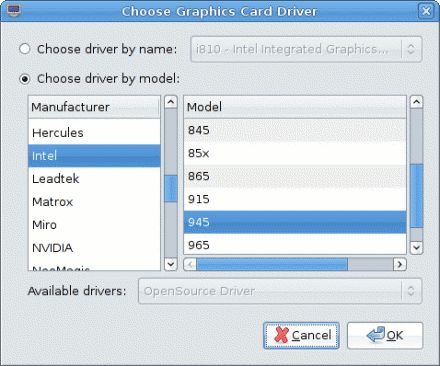
Ubuntu 7.10 (Gutsy Gibbon) is going to include a GUI configurator which aims to make it simpler for users to configure X Windows. The new configuration panel also has a ‘fallback’ feature which guards against X Windows failure to start after tweaking its config.

Here are screenshots of Xorg.conf configurator running on Ubuntu Gutsy

Xorg Ubuntu mypapit

Xorg Ubuntu mypapit #2

[tags]ubuntu,gutsy,gutsy gibbon,xorg,xwindows,opensource,linux,x11[/tags]

Local Malaysian – Ubuntu Package Repository Mirror

kaeru has published the URL of Malaysian Ubuntu Package mirror for faster Ubuntu installation for local users.

To use it, configure your synaptic (or edit /etc/apt/sources.list) to include this line :


deb http://mirror.inigo-tech.com/ubuntu/ feisty feisty-backports universe multiverse

The repository also includes updates for previous release of Ubuntu including Edgy Eft (6.10), Dapper Drake (6.06), and the upcoming Ubuntu release Gutsy Gibbon (7.10). Try it out!

[tags]ubuntu,repository,apt-get,synaptic,feisty,feisty fawn,malaysia[/tags]

Debian AMD64 is not limited to AMD machines only

mypapit debian logo

Debian AMD64 label for its version of x86 64bit platform operating system often leads to misunderstanding that the installer only supports AMD CPU only. In fact the label was meant to support Intel based x86-64 bit CPU as well (such as the Core Duo processor) in addition of AMD machines.

Why Debian use ‘AMD64’ ?
The source of confusion traces back when AMD being the first to design the instruction set for the 64bit version of x86 CPUs (for Athlon 64) back in 2002. Back then Intel hasn’t produced 64bit CPU yet making AMD the sole vendor for 64bit x86 CPU. The Debian project elected to support this architecture with the name AMD64.

Does Debian AMD64 works on Intel Core 2 Duo CPU ?
To make the story short, Intel then produces its own x86 64bit line of CPU base on AMD design. Since there are similarities, so both AMD64 and EM64T (Intel x86 64bit) shares instruction set design practically Debian AMD64 bit works on Intel CPU too (that includes Core 2 Duo CPU)

The confusion persists as Debian (and previously Ubuntu), still uses the AMD64 to identify with x86-64 platform which most other GNU/Linux distro doesnt (Fedora, Red Hat, Kanotix, Cent OS). In this case, I would prefer Debian to change its AMD64 labelling to ‘x86-64’ in order to refer to 64bit x86 based machines.

Conclusion
Debian still stuck with the old AMD64 labelling despite x86-64 is not limited to AMD CPU only and if you are wondering which version of Debian to install on your Intel Core 2 Duo computer, then please choose AMD64 with confidence.

[tags]debian,ubuntu,amd64,intel,amd,feisty fawn, gutsy gibbon[/tags]