How to use FTP in Ubuntu Linux

Believe it or not, I’ve been getting a lot of query hits lately for instruction to use FTP on Ubuntu Linux. So today I decided to write a simple guide for using FTP in Ubuntu.

How to connect to an FTP Server
Firstly, you should note that you do not need to install anything special in order to connect to ftp server from Ubuntu.

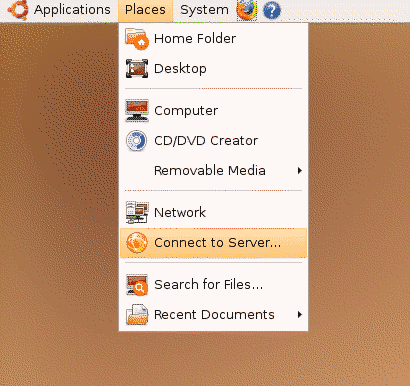
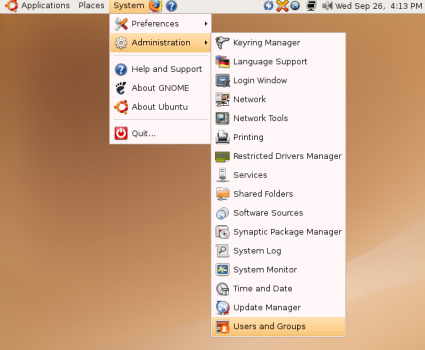
What you need to do is to is to select “Places” menu from Desktop, then select “Connect to Server…”

cts-small.png

Then you will see a dialog prompting you to enter ftp connection details. For this exercise we will start off by connecting to a Public FTP Server which does not require user login or password.
Continue reading “How to use FTP in Ubuntu Linux”

Track Satellites in Real-Time on the Sky with GPredict

I found another great free and open source software (FOSS) which lets me track satellites location orbiting around earth. The software is named GPredict for its capability to predict satellites orbit and footprint on the sky.

My first impression of this software itself makes me go wow, as the software is able to track known satellites path around the earth which includes GPS satellites, Weather Satellites, Iridium satellites, geostationary,military and satellites used for scientific purpose.

GPredict-ing GPS Satellites
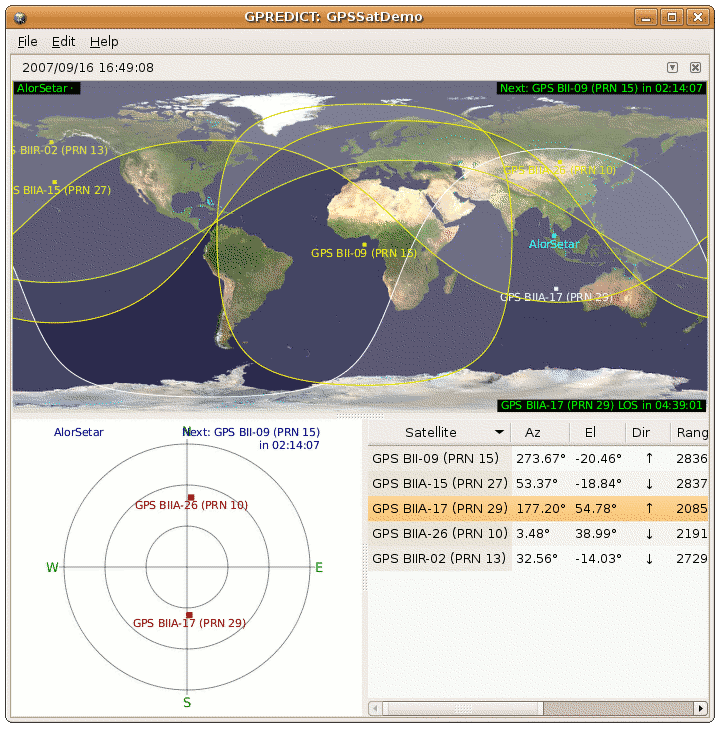
To test the accuracy of GPredict, I whipped out a GPS-capable device which runs Garmin Que navigation software. The Garmin device has an informative screen which represent GPS satellites visible on the sky according to their PRN id.

Then I created a module on GPredict which tracks those satellites. The GPredict results seems to tally with the Garmin Que results! Moreover GPredict is able to tell GPS satellites that Garmin Que has missed on its initial sweeps, which then appears on the Que screen shortly after.

Predicting Satellite Pass
GPredict also able to tell when certain satellites will pass over a designated area, it also able to estimate the satellite visibility duration — a valueable information if you’re into satellite hunting or are using satellites to communicate.

GPredict Screenshot

predictamateurmy.png

GPredict Downloads
GPredict is licensed under the GNU General Public License and can be downloaded from its official website : Groundstation GPredict.

A Microsoft Windows port is available from GPredict Sourceforge project page.

GPredict is also available in the Debian and Ubuntu Gutsy Gibbon / Feisty Fawn apt-get repository.

ps: You can also view the location of MEASAT-1, MEASAT-2 astro satellites, though it is rather pointless to track since both satellites are positioned in a geostationary orbit.

[tags]gps,satellites,linux,opensource,open source,feisty fawn,gutsy,ubuntu,debian,ham,hamradio,foss,gnu gpl[/tags]

How to open Microsoft OpenXML docx documents in OpenOffice

As of this time of this writing, the OpenOffice.org package included with Ubuntu Festy Fawn, Ubuntu Gutsy Gibbon and Debian Etch still does not support opening Microsoft Office OpenXML (docx) document format.

Though the use of docx files are HIGHLY DISCOURAGED, it is still important for us to be able to read document in this format in-case if somebody forwarded docx files to us.

Here are some easy steps to follow in order to enable OpenOffice.org to read OpenXML docx files :

  • Download odf_filter.tar.bz2 file, and unzip it
  • The archive contains 4 additional files, MOOXFilter_cpp.xcu, MOOXTypeDetection.xcu, OdfConverter and README.txt
  • Follow instructions in README.txt and copy the 3 files into Openoffice installation directory as outlined below


sudo cp OdfConverter /usr/lib/openoffice/program/

sudo cp MOOXFilter_cpp.xcu

  • usr/lib/openoffice/share/registry/modules/org/openoffice/TypeDetection/Filter/

    sudo cp MOOXTypeDetection.xcu /usr/lib/openoffice/share/registry/modules/org/openoffice/TypeDetection/Types/

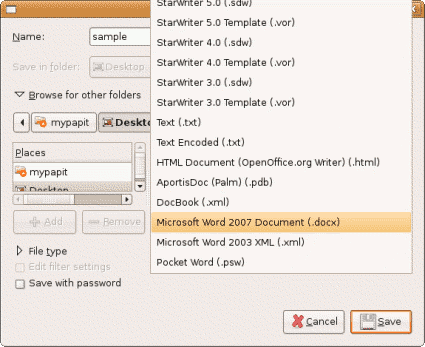
  • openoffice_docx.png

    After that, your Openoffice.org installation should be able to read/open Microsoft Office 2007 OpenXML docx file without any problems.

    Drawbacks
    This trick only works on Document (docx) files but not on Presentation (pptx) and Spreadsheet files (xslx).

    Original source – OpenOffice. OpenXML Translator

    [tags]docx,openxml,openoffice,feisty,feisty fawn,gutsy,gutsy gibbon,openoffice.org,microsoft,office,microsoft office[/tags]

    Deluge Torrent – Another cool Linux GUI Torrent Client (supports protocol encryption)

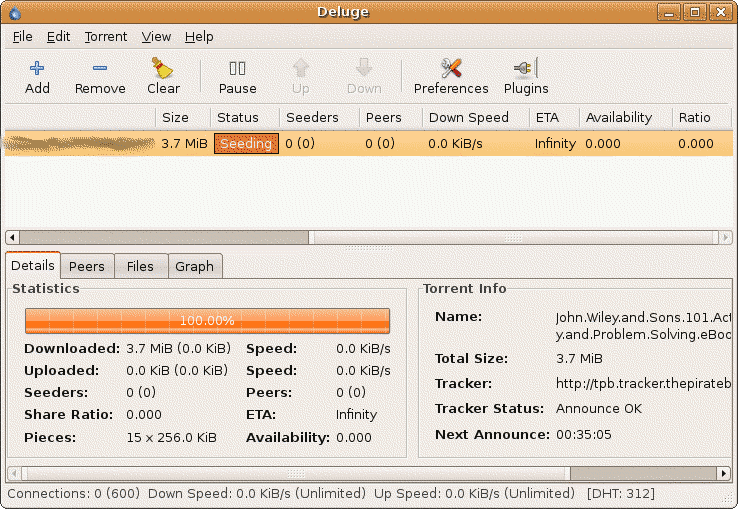
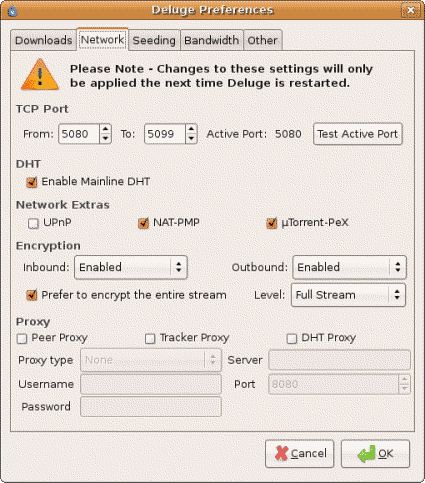
    Deluge Torrent is yet another opensource GUI torrent client available for the Linux platform. What sets it apart from others is —- it is one of few GUI clients which supports the BitTorrent protocol encryption to avoid the traffic shaping effect policy set by the ISP.

    Written in python, Deluge-Torrent supports loads of feature comparable to Azureus, another popular bittorrent client use in Linux operating system.

    Among the features supported by Deluge-Torrent are :

    • DHT support
    • uTorrent Peer Exchange
    • Protocol Encryption
    • UPnP and NAT-PMP
    • Proxy support
    • Support for Private Torrents
    • Torrent creator
    • RSS Broadcatcher
    • Ability to minimize to system tray
    • Network Activity Graph

    The ability to access uTorrent Peer Exchange is a nice feature because Deluge can interact with thousands of utorrent users across the worlds and exchanging peer information effectively with them.

    Screenshot

    deluge1tn.png

    deluge2.png

    Resource-wise, Deluge-Torrent is more friendly in processor and memory consumptions compared to Azureus. Its clean and simple user interface makes it the easiest GUI Bittorrent client to use in Linux platform that supports protocol encryption.

    Deluge-Torrent can be downloaded from its official website – http://deluge-torrent.org/, Ubuntu users can obtain Deluge-Torrent from the unofficial Ubuntu One-Click Installation portal – GetDeb.net.

    [tags]utorrent,bittorrent,torrent,deluge,azureus,opensource,linux,ubuntu.debian[/tags]

    Lanmap – handy tool to map your Local Area Network (LAN) automatically

    I discovered lanmap during my stay in a hotel during the Merdeka holidays. This little handy tool can generate local area network map in PNG,SVG and GIF format by listening to network traffic from network interfaces.

    lanmap does this by putting network interface in promiscuous mode and representing the data its sees into a 2-d human-readable network graph. It has the advantage of identifying the network traffic being passed around the network along with the name and the operating system of the host which are represented on the graphical representation as well.

    My House Local Area Network

    lanmap2.png

    Local Area Network from a Hotel that I stayed in

    lanmap2.png

    lanmap works under Linux, BSD, Windows and OS X operating systems. It requires libpcap library for capturing packets and graphviz visualization library to generate 2-d network graphs.

    You can download lanmap from its official website. Lanmap is licensed under the GNU General Public License version 2.0.

    [tags]lanmap,network,nmap,ubuntu,ethernet,internet,ubuntu,linux,feisty[/tags]