Install Mozilla Firefox Ubuntu theme

Did you know Ubuntu provides Mozilla Firefox theme to make it look better integrated with default Ubuntu themes (Human, Tango, Industrial).

In order to take advantage of the integration, you need to install firefox-themes-ubuntu package.

sudo aptitude install firefox-themes-ubuntu

After you are done, you can start customising Firefox theme to make it look better integrated with the corresponding Ubuntu themes that you use, whether its Human, Tango or Industrial theme.

I know first hand that some people do not prefer the default brownish Human theme, and prefered Industrial theme instead.

So why not install these Firefox theme to get rid all those traces of brownish look on your desktop?

[tags]ubuntu,firefox,mozilla,themes,debian,linux[/tags]

Generate Ubuntu apt-get Source.lst automatically

Sources.lst is a file located in /etc/apt/ directory. It is used in Debian-based (which includes Ubuntu) Linux operating system as a configuration file for software management.

Sometimes it is necessary to alter your sources.lst to include the nearest apt-get mirrors from your location, this is to ensure faster downloads during software upgrades and installations.

Fortunately, the good people from Ubuntu-NL has made this task easier by creating an online tool (source-o-matic) which helps you generate sources.lst file based on the list of available mirrors

source-o-matic supports Ubuntu releases on all architectures from 4.10(Warty) to 7.04 (Feisty). It is an easy tool to use, you only need to choose which country you’re in, put on your Ubuntu release and architecture, tick few radio boxes and your sources.lst file will be generated automatically.


Source-o-matic
also includes a list of unofficial apt-get mirrors for installing softwares that isnt included in the normal Ubuntu distributions.

[tags]ubuntu, linux, sources.lst,apt-get[/tags]

Howto Convert FLV (Youtube, Google Video) files to AVI in Linux

This howto will show you the shortest way to convert flv (flash video) files to AVI using open source mencoder. To perform the conversion, you just need to type :

mencoder -oac copy -ovc lavc -o video.avi video.flv

What is FLV files?
FLV (flash video files) is a format for delivering video through the internet, it is currently being use by the popular Youtube video sharing service and Google Video. It is possible to obtain this file by using other open source tools such as youtube-dl or from an online youtube downloader VideoDL.org

You can convert the FLV files into other format too. In order to do that, make sure you have all the necessary codecs to perform the conversion. If you’re in doubt, install w32codecs, add this line in your repository to enable w32codecs installation (assuming you use Ubuntu Edgy Eft).


deb http://packages.freecontrib.org/ubuntu/plf/ edgy free non-free
deb-src http://packages.freecontrib.org/ubuntu/plf/ edgy free non-free

Now you can use Linux as to do your video encoding stuff without much hassle.
[source]

[tags]linux, mencoder,flv,youtube,ubuntu,flash,encoding,ripping[/tags]

List partition types in Linux with fdisk

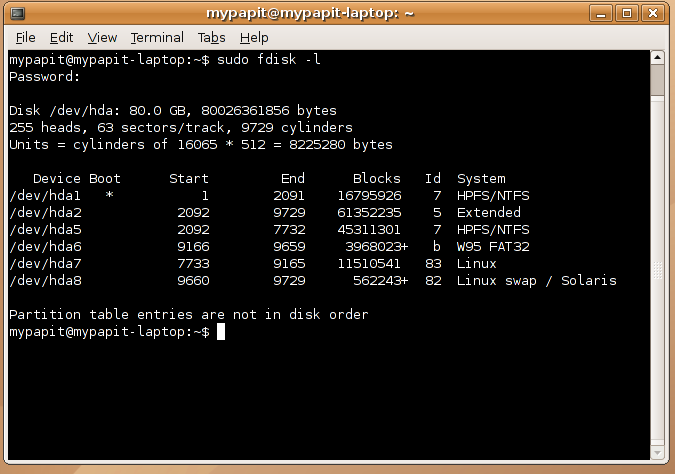
A quick tip, you can find about all partition type in your system by typing “fdisk -l” (as root). For example :

fdisk

With this command fdisk lists partition type in all disks without you having to mount them.

What can you do with these information?
You can use it as a clue to mount your partition. fdisk also list the device name of the corresponding partition thus making your job easier to identify which device contains the data that you want to find.

[tags]tips,tutorial,fdisk,linux,partitions,ubuntu,debian[/tags]

Burn CD images in Linux command line

This tip will be brief, it concerns about writing bootable linux iso images to CDROM. What you need is cdrecord, cd-writer drive, blank cd-r and iso image (and maybe mkisofs).

Howto burn ISO images to CD
Insert the blank CD-R, and run

cdrecord -v speed=4 dev=/dev/cdrom ubuntu-6.10-desktop-i386.iso

and you’re done.

Howto burn (backup) files to Data CD
You’ll need mkisofs and cdrecord to burn your data files to a CD,

Run,

mkisofs -r -J -o yourbackup.iso /home/path_to/your_files

cdrecord -v dev=/dev/cdrom  -data  yourbackup.iso

and that’s the easiest way to burn cds on command-line linux.

[tags]linux,cdrom,iso9660,joliet,ubuntu,cdrecord,mkisofs,debian[/tags]

Optimise your openoffice files with KJar

Hi, I found a way to optimise the size of OpenOffice.org files. The OpenOffice.org file format (*.odt, *.odp, *.sxw, etc) uses series of xml files to describe the content of documents. These files are package into a JAR file (similar with zip file format) which uses deflate compression algorithm.

Though OpenOffice.org files are relatively small, it is interesting that you can make the file even smaller by recompressing the documents file using a better optimized deflate implementation.

One such implementation are made by Igor Pavlov for his 7zip application, which is used by AdvanceMAME to create a suite of application,AdvanceCOMP to recompress deflated files. However this implementation are not coded to handle the zip file variant (JAR) used by OpenOffice.org.

One alternative is to use the KJar recompressor which uses Ken Silverman deflate implementation (kzip/kunzip). The application itself is non-free and only available as Win32 binary (*.exe), however it can be adapted for use with wine.

How to compress OpenOffice.org files?

Simple, just rename your document file to .jar, and run kjar on it. The process will take a while and on average I’m able so save up to 15% -40% openoffice file size, which is about 60KB for 500KB OpenOffice file. My record is able to save 54% of the original filesize (from 1354KB to 420KB), that’s a lot of saving there.

Maybe some of you think that this is unimportant, but as for me, i’m always interested in how much space that I can squeeze on a 500+ page documents :)

Download KJar at : http://supremej2me.bambalam.se/guides/optimization-tools/kjar/

[tags]openoffice,optimization,opendocument, odf,deflate,compression[/tags]