How to Start Application Automatically in Ubuntu (Startup Program)

Here’s the way to configure Ubuntu to autostart your favorite application upon startup (like Microsoft Windows ‘Startup’ folder). This how to assume you are using the default GNOME windows manager.

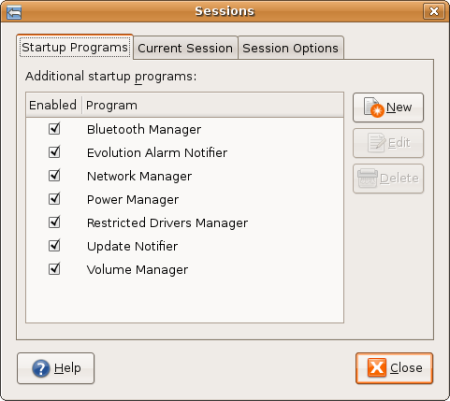
  • From the Desktop, Go to System > Preferences > Session,
  • Select Startup Programs, click “New”, and type in the command of your favourite application. Close the tab.
  • The application selected in the Startup Program dialog should automatically starts the next time you logged in your computer.
  • Mohammad Hafiz mypapit best

    Why do you need Startup Programs ?
    For convenience purposes. with Startup programs, you don’t have to manually launch your favourite application each time you logged into your Desktop environment which can become very laborious.

    This is very handy if you have a list of application that you need to start each time you log in to your Desktop such as Gaim/Pidgin, Ekiga, Feedreader and/or some application that you can’t live without.

    With Startup program, you can save your time from having to start these applications manually and save yourself from forgetting to start essential application each time you boot up your computer.

    [tags]ubuntu,debian,open source,opensource,feisty fawn, gutsy gibbon[/tags]

How to Setup Skype USB Phone to use with Ekiga (under Ubuntu)

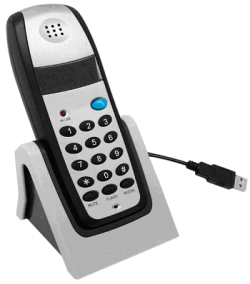
In this post I’ll show you how to configure commercially available Skype USB phone to use with your Ekiga softphone.

What do you need

  • a USB Skype phone
  • Ekiga (with registered account)
skypephone.png

Some Explanation on Skype USB Phone
If you have spend your time doing surveying and window shopping, you may already come across one of these USB products which offers the ‘phone’ feeling to your Skype application.

What some people does not aware of – these ‘Skype’ phone is merely a generic USB audio device built to look like a phone set. These generic chipsets are readily supported under Linux operating system without additional hardware drivers.

ekiga1tn.png

Instructions to use Skype USB phone in Ekiga

  • Plug in the Skype USB phone and start Ekiga Softphone application.
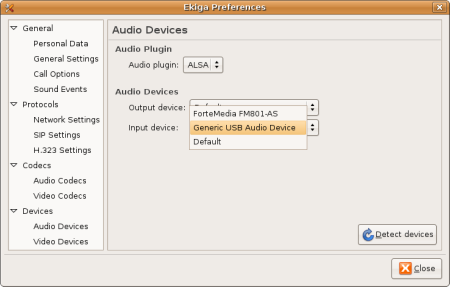
  • Go to Edit, Preferences.
  • Under Devices -> Audio Devices, select the appropriate audio device for your USB phone. In my case, It was “Generic USB Audio Device”. Close the Preference Dialog
  • Your should be able to use the Skype USB phone when calling using Ekiga!

p/s: Note that the keypad does not work with Ekiga in this case although through my inspection, 3 out of 3 USB phone keypad that I experimented on uses Microsoft Xbox xpad.c driver which can be use to interact with desktop application like Ekiga (it’s possible)

[tags]feisty fawn,ubuntu, ekiga, usb, skype, voip, gnome,open source, opensource[/tags]

How to get fastest Ubuntu apt-get repository server with Synaptic

Downloading software from repositories can be a long and daunting task especially when you are downloading from a repository server which is far from your location.

It even can turn out to be an annoying experience when your downloads keeps timing out because of the bad connection between you and the mirror server. Thus it is crucial for us to find the closest/fastest software repository in order to speed up the installation and upgrade process.

In this post I’ll show you how to get the fastest/closest repository server automatically using Synaptic. Here’s how :

First you need to start up Synaptic. Then go to Settings->Repositories.

synaptic1.png

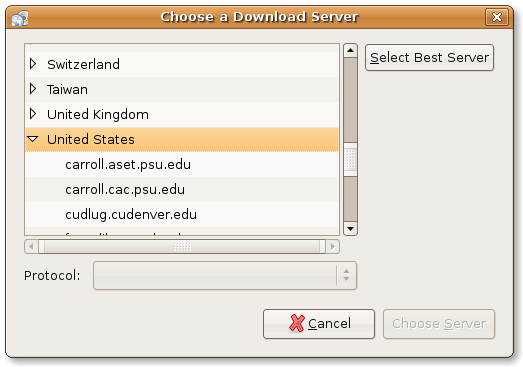
Click the Download From section, and Select ‘Other

synaptic2.png

Click “Select Best Server” button to enable synaptic to find the best and fastest repository server for you.

synaptic3.png

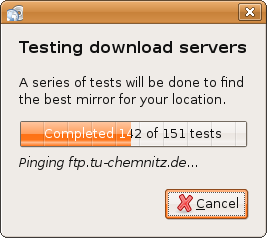
Synaptic will perform automated pinging, and It will select the fastest server based on its calculation. Its nice and easy!

[tags]ubuntu, debian, apt-get, repository, deb, repositories, synaptic,feisty,feisty fawn[/tags]

How to add Linux Swap file if you don’t have Swap Partition

Picture this, you’re running a lot of process that consumes a lot of memory that even your 2GB RAM is running out faster than you can blink your eye. Suddenly your machine slows down to a crawl, then it begin to hang, and all you can do is pray that you wont lose any valuable data should one of the process be killed.

You realised now that you should have allocate more space to that dwarfish 100MB swap partition, seems like it is too late as you need to repartition your hard disk to resize the swap partition to avoid this problem when running memory intensive program. All is lost…

Enter the Swap file…

Actually you can substitute a swap partition with swap files if you need more swap. What you need to do is create an empty file with the size of the swap that you preferred (for example 500MB) and add this information to your fstab.

How to add more Linux Swap with Swap File

Assuming you want to put it in “/”, Create an empty 500MB file
$ sudo dd if=/dev/zero of=/swap.img bs=1024k count=512

Format it as a swap file
$ sudo mkswap /swap.img

Add it to your running Linux system
$ sudo swapon /swap.img

Optionally you can add /swap.img to fstab for automatic swap activation.

$ sudo gedit /etc/fstab

Add this line at the end of the file
/swap.img none swap sw 0 0

Run “free -m” command to verify that you’ve added the newly created swap to your Linux based operating system.

Hope that helps!

[tags]linux,ubuntu,debian,opensource,open source,fstab,swap[/tags]

How to Get Detailed Information from Ubuntu Software Updates

Users of Ubuntu Linux are probably already accustomed to Ubuntu update screen which appears when there are security or critical updates to the operating system.

A typical software update screen will display a list of softwares that require updates along with their release number. What most people would probably overlooked is the “Description of update” below the the list. Clicking it will reveal the description of the updates along with a brief explanation about security hole or bug that it fixes.

updatemanager.png

The expanded description also provide hyperlinks to the patch website which contains security advisory references to the aforementioned patch. This information would help users understand which bugs/security hole that has been eliminated with the current updates.

updatemanager3.png

[tags]ubuntu,security,debian,open source,opensource,linux,apt-get,synaptic,feisty fawn, feisty[/tags]

Ekiga VoIP – Talk across the Internet freely with Linux

Those who are used to VoIP and internet phone might already familiar with Ekiga, an open source VoIP client for Linux and Windows operating system.

Formerly known as GnomeMeeting, Ekiga allows you to place call and hold video conferencing session with any VoIP client that supports SIP and H323 protocol, including Microsoft Netmeeting, Gizmo, Linphone and XMeeting.

Ekiga allows you to call ordinary phone number at affordable rate via its PC-to-Phone account, all you need to do is to purchase Ekiga PC-to-Phone credits and you’re ready to call any phones in the world!

Stuck behind NAT? Ekiga enable you to talk over the internet even when your router does not support SIP/H323. The configuration druid will automatically detect your network connection and configures itself to adapt to your network environment.

Here are some Ekiga’s Screenshots

ekiga1a.png

ekiga3.png

Interesting Ekiga Phone Numbers
You might notice I dialed ‘500’ in my Ekiga. Well that’s the number for an Ekiga echo service useful for testing your software setup. Here are some interesting Ekiga numbers for you to try.

  • sip:500 – audio and video echo test
  • sip:501 – conference room
  • sip:530 – talking clock
  • sip:*266303 – some music
  • sip:*266300 – monkey sound

Contact Me on Ekiga
You might also want to contact me using Ekiga at sip:mypapit@ekiga.net, I’m pretty open for some quick conversation or a helo.

p/s: I wrote this post as a respond to one of my blog readers request for me to write a post on Ekiga. Please refer to Howto Install Skype on Ubuntu if you’re more interested in Skype.

p/s 2: Base on my personal experience, I found Skype voice quality and service is noticeably more superior than Ekiga or Gizmo, your mileage may vary however

[tags]ekiga,voip,skype,internet,phone,linux,open source[/tags]