Ubuntu Feisty Fawn Repository on DVD

This is a continuity from my previous post Get Ubuntu Repositories on DVD.

Now you can get Ubuntu Feisty Fawn Repository DVD images from ftp://tuma.ui.edu/pub/ubuntu-repository/7.04/.

While some might argue that putting the whole Ubuntu repository on DVD is unnecessary, having it is nice especially when you need to install software packages in places where a high-speed internet connection (broadband) is not available.

Please refer here for a guide to add the DVD on Feisty Fawn repository list. You can also read the guide in Indonesian language from http://wiki.ubuntu-id.org/DistribusiDvdReposUbuntu

Alternatively, you can create a customized Repository CD/DVD that suit your needs using AptOnCD utility to be used on a computer which does not have a high speed internet connection.

-Hope that would help

[tags]ubuntu,feisty fawn,feisty,debian[/tags]

Ubuntu : How to Syncronise Computer Time with NTP

Network Time Protocol (NTP) is a protocol responsible for keeping your computer time in sync (Standard Time) with the rest of the world. Keeping up with standard time with the rest of the world proves to be useful when you’re interacting with the rest of computers across the world.

Here’s how to manually update your computer time to syncronise with NTP, from the terminal run ‘ntpdate’ command


sudo ntpdate europe.pool.ntp.org north-america.pool.ntp.org

If you live in South-East Asia like me, you can synchronize your computer time with the Malaysian/SIngapore NTP server


sudo ntpdate 3.asia.pool.ntp.org 1.asia.pool.ntp.org

Note that the synchronizing process is usually done automatically by the operating system when the computer is connected to the internet. This command is useful if you wish to synchronize your computer manually when you’re connected to internet.

[tags]ntpd,ntp,ubuntu,debian[/tags]

How to install Skype on Ubuntu

Skype is perhaps the most popular client to make calls from your computer to any phone lines in the world. With SkypeIn subscription, you can even get an international phone number for everybody to call you, a completely neat way for your friend in overseas to call you with cheap rates. Although Skype is a proprietary software which uses a non-open protocol, some people would find it useful as it enables them to make international call with cheaper rate via SkypeOut.

Installing Skype on Ubuntu (or Debian)
This how to will show you how to install a Skype client in Ubuntu & Debian base operating system.

  1. First of all you need to start up Synaptic Package manager. Go to System->Synaptic Administration->Synaptic Package Manager,
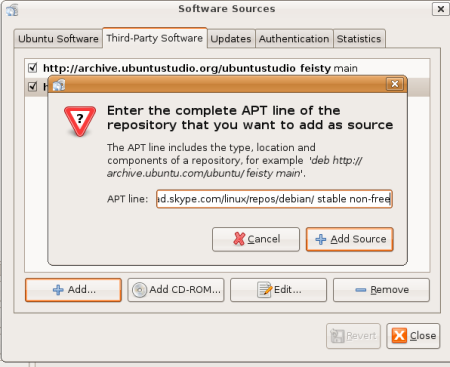
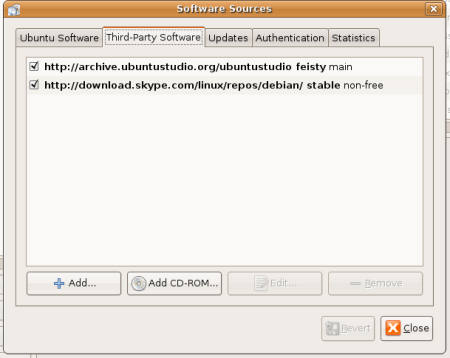
  2. From Synaptic, go to Settings->Repositories. Click on Third Party Software Tab. Click Add, and put on this line :
    deb http://download.skype.com/linux/repos/debian/ stable non-free

    Click Add Sources.

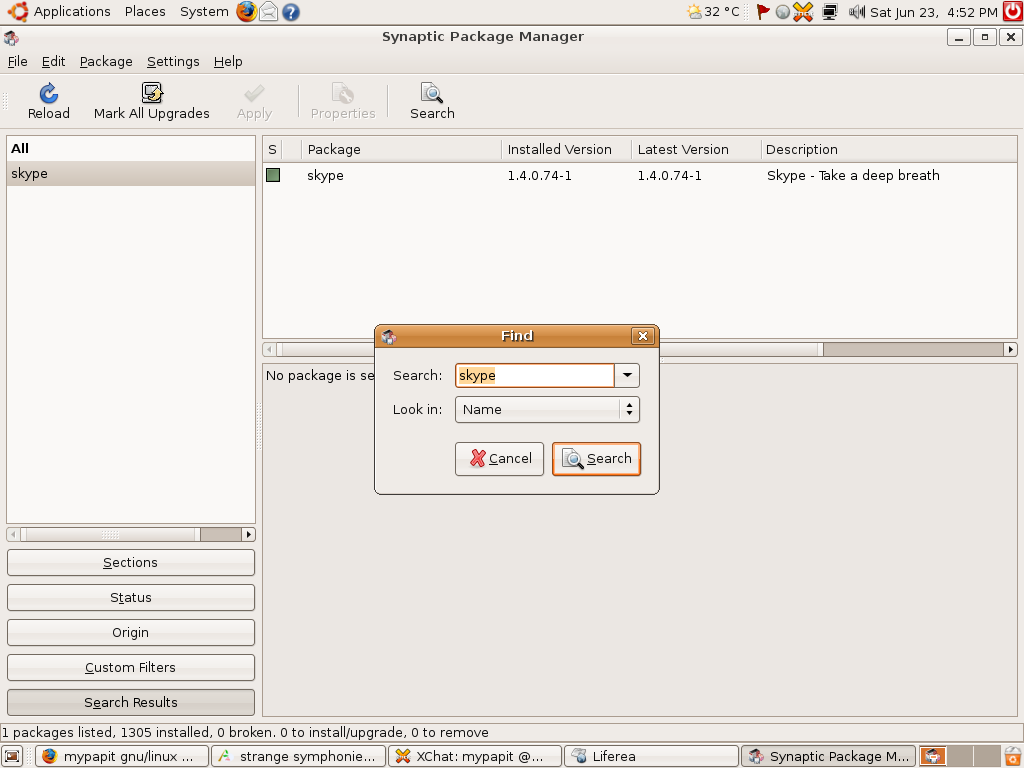
  3. Click Close, and Click ‘Reload’ at the top of Synaptic. Now you can search for Skype, and install it from Synaptic.

skype3tn.png

skype1tn.png
skype2tn.png

Hope that will help you to install Skype on your Linux operating system. Alternatively, If you’re a fan of open source software and open standards, then you might want to look into Ekiga (formerly GnomeMeeting), cheerio!

[tags]skype,voip,ubuntu,feisty fawn,linux,messenger[/tags]

How to connect to ADSL Broadband Internet from Ubuntu

This is the most popular question that I received currently from new Ubuntu and Debian users. This is probably because Ubuntu and Debian based operating system usually does not provide an obvious way to connect to the internet through ADSL Broadband Modem.

How to connect to internet through ADSL Broadband Modem
Here’s a quick guide for you to connect to the internet using ADSL broadband modem.

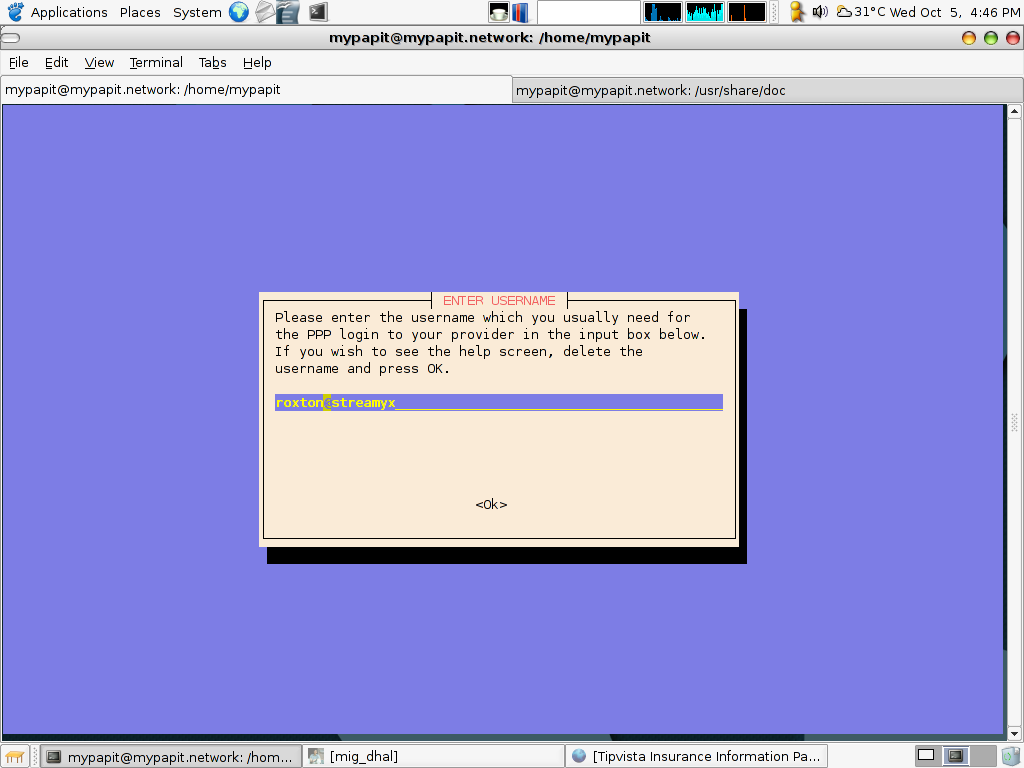
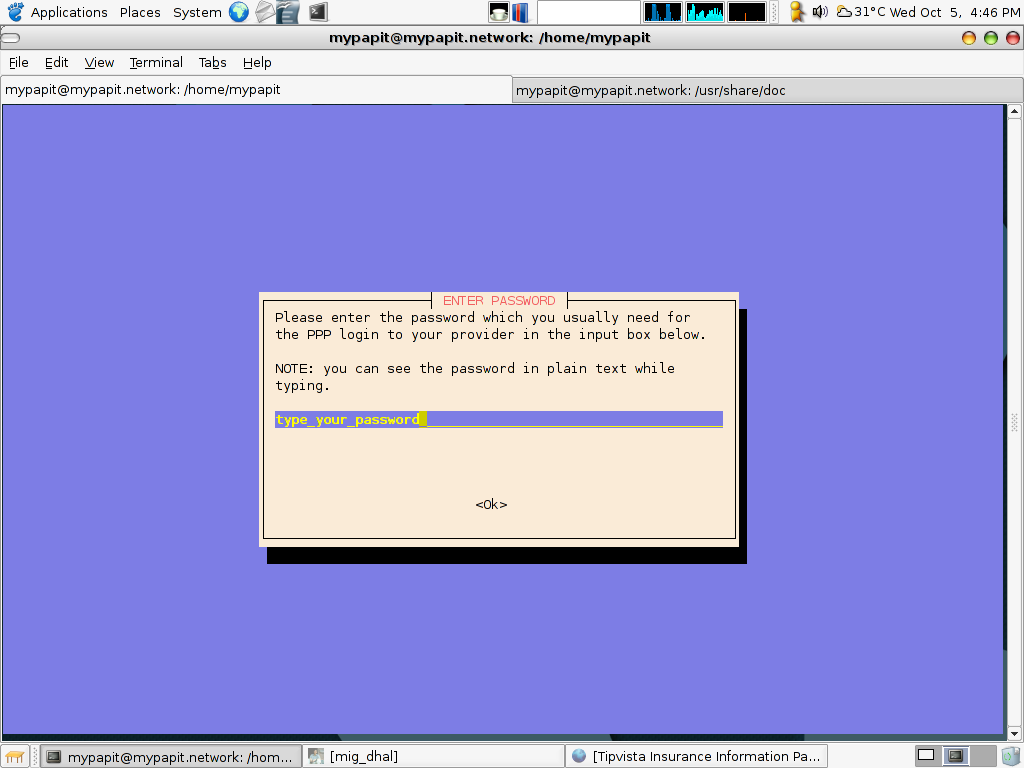
  1. From the desktop, go to ‘Application’, then’ Accessories’, then start the ‘Terminal’ application’
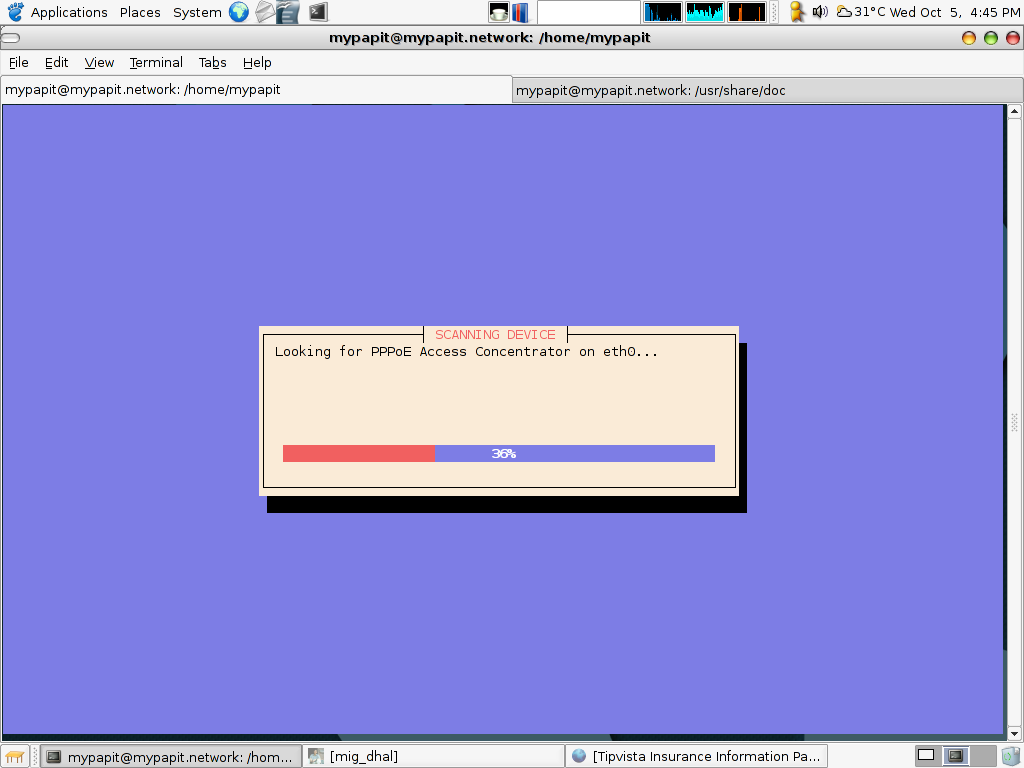
  2. From the console terminat, type ‘sudo pppoeconf’ to start the ADSL configuration application
  3. You’ll be presented with a screen prompting your ADSL login name and password
  4. Answer all the questions and press OK, the screen will exit, and you should be able to connect to the internet by now

screenshot-1tn.pngscreenshot-4tn.pngscreenshot-5tn.png
Remember, type “pon dsl-provider” if you want to connect to the internet again after you’ve rebooted or switched off the computer.

Earlier version of the post : Connecting TMNet Streamyx Broadband while using Ubuntu

[tags]ubuntu,broadband,internet,modem,adsl,debian,streamyx,pppoe[/tags]

Linux Compatible Hardware List

If you are a Linux enthusiast, then one of the thing you might consider when buying a new hardware is its compatibility with your operating system.

Unfortunately, there aren’t many dealers out there that know whether their products are compatible under GNU/Linux or otherwise. This may lead to frustration when you’ve to spend a lot of time searching for a particular hardware that can work under Linux.

Luckily there are websites which maintains a list of Linux supported hardware. These websites are :

Although some of the lists are maintained by a particular vendor, the list can be use as a guideline when buying hardware for other Linux distro too.

Please note that the lists provided here are not always up-to-date with the latest Linux kernel . You are still encouraged to find more information for newer hardware from Linux support forums and newsgroups.

[tags]linux,windows,computers,open source,hardware,ubuntu, debian[/tags]

Morse Code Training Application on Ubuntu Linux

I’ve been a SWL for a while now since I got my hand on my dad’s old two-way ham radio. Since then, I’ve become interested to learn morse code after listening it over the amateur radio band in my place.

After spending time searching for morse code training program, I settled on the three best application I can find inside Ubuntu repositories, and they are : aldo, cw and morse-x.

aldo
aldo is perhaps the best morse training application for Linux (unix-like) platform. It can train you to recognise morse code beeps with classic Block method or the more recommended Koch method.

Aldo keep tracks of your performance by gauging your accuracy of identifying the correct morse code keyed during training sessions. Aldo is also capable of generating random north american amateur radio callsign for training purposes, which is essential when you’re communicating/listening on CW mode.
http://www.nongnu.org/aldo/
Continue reading “Morse Code Training Application on Ubuntu Linux”