Quick Look on GNOME and KDE Desktop features

GNOME and KDE is probably the most famous windows manager for GNU/Linux based operating system. This is because major GNU/Linux distro opt to use either one of them as their main Windows Managers.

This move however has divided the users into two major camps, the GNOME and KDE camps. Each Window Manager has its own distinctive style and ways of handling user interaction

I found a nice website that try to compare features available between the two desktop environment (using Ubuntu as a base distro) : KDE and GNOME Environment

[tags]ubuntu,kde,gnome,linux,desktop,distro, gnu/linux[/tags]

Download Ubuntu Eft (6.10) Knot 2

Although schedule to be released on October 26, 2006, you may download Ubuntu Edgy Eft (6.10) Knot 2 CD from Ubuntu website. The Knot designation can be taken as preview release of Ubuntu, it is based on Linux kernel 2.6.17.6 and it features GNOME 2.16 RC 1, OpenOffice.org 2.0.3 and Firefox 2.0b1 among other new softwares.

Edgy Eft is said to improve the previous release Dapper Drake of memory usage and applications like Evolution e-mail client and Nautilus file manager uses less memory? and loads faster.

Hope that they can get more features into Edgy Eft soon, the Linux 2.6.17 has improved Broadcom wireless chipset support and that would be an added plus to those who are using laptops.
[tags]ubuntu,linux,dapper drake,dapper,eft[/tags]

Install Kubuntu with Ubuntu Disc

You’ve tried Ubuntu and didn’t like the GNOME? You want to install Kubuntu with KDE instead?

I’ve a good news for you! You don’t need a separate Kubuntu Disc to install Kubuntu, instead you can just install Kubuntu right from your default Ubuntu Disc provided that you’ve a fast internet connection.

What you need to do is install the “kubuntu-desktop” package from synaptic or console apt-get :

sudo apt-get install kubuntu-desktop

and Ubuntu will take care the rest. To use Kubuntu, you just need to log out from your Ubuntu GNOME desktop, and click the Options to change it to KDE, log-in again, and then you’ll be officially inside Kubuntu.

Have fun trying out this trick!

Get Ubuntu Repositories on DVD

Having Ubuntu Repositories on DVD is handy if for some reason you can’t get connected to the internet or your connection slow to download favorite application.

There’s an Indonesian website which offer Ubuntu repositories (main, restricted, universe, dan multiverse) on DVD, which means that you would not have to be connected to the internet in order to download application anymore.

All you need to do is to download the DVD images using jigdo, and find the means to burn those DVD. Then to use the DVD, you only have to enter this line at the terminal :

sudo apt-cdrom add

Which Ubuntu will prompt you to insert the DVD (in no particular order), wait until apt -cdrom finish scanning the repo and repeat this step for each of the DVDs.

Finally you can browse all the application inside the DVD repositories by browsing Synaptic, and install them.

The downloads can be obtained at http://wiki.ubuntu-id.org/DistribusiDvdReposUbuntu . Please refer to the Jigdo tutorial if you don’t know how to use it in order to download the DVD.

Have a nice day.

[tags]ubuntu,linux,debian,jigdo,repository,repositories[/tags]

Install Mozilla Flash Plugin in Ubuntu

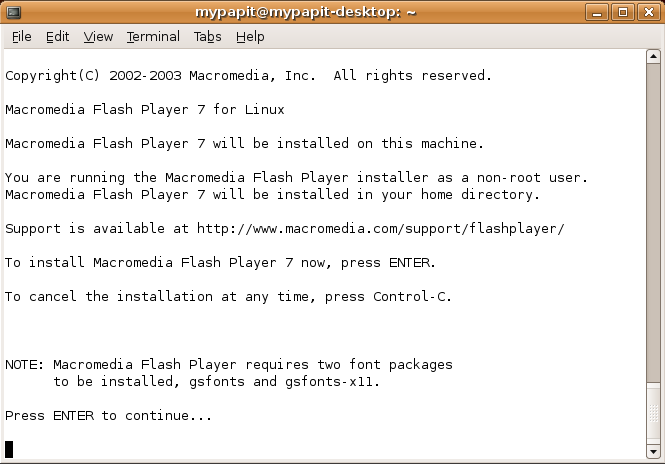
I get questions about installing Flash plugin for Ubuntu some of the time, and here’s a quick howto activate the plugin in any Linux distro. Assuming you use Ubuntu :
First, download the flash plugin from Adobe website, click the Download Now button

From Desktop, goto Applications->Accesories->Terminal, type

tar zxvf ~/Desktop/install_flash_player_7_linux.tar.gz

You’ll see a list of files extracted. Then type,

install_flash_player_7_linux/flashplayer-installer

Answer a few questions, then the screen will tell you that the Installation was successful.

Close your browser, and start it again. You should have your Flash plugin support in Mozilla Firefox browser right now.

[tags]flash,firefox,mozilla, firefox plugins, macromedia, adobe,ubuntu,linux[/tags]

Spanish Ubuntu wiki

Ubuntu Portada

I found a Spanish Ubuntu Wiki on the internet today, which I find it quite useful. The wiki contains info and guides about how to use Ubuntu in Spanish language. Among the guide in the wiki are:

How to install Ubuntu from downloading images/burning iso

  • Customising desktop
  • Introduction to Linux
  • How to use GRUB
  • Understanding processes
  • How to configure network
  • Installing application
  • How to do programming in Ubuntu

Currently there’s 114 articles that span over 1,800 pages on the wiki, the numbers of contribution ar growing each day as it being updated by the community. Wish we have a lot more localised wiki like this, because free software is about freedom of choice.

[tags]ubuntu,debian,linux,spanish,wiki,mediawiki,community,gnu/linux,portada,guide[/tags]