Ubuntu Feisty Fawn does not work on Compaq Presario v3521

I’m supposed to post this post last month while the issue was still hot, but it seems that this post has been evading me for quite some time until now. Last month a friend of ours decided to get his first laptop, after browsing the internet and satisfied with our peers’ recommendation, he settled on Compaq Presario v3521 which is a relatively new model that supports SATA2.

However the joy of getting a new laptop soon fades away when he finally found out that Ubuntu does not support that particular model! The Ubuntu installer either froze up during the LiveCD booting screen or the installation dialog doesn’t detect any hard disk attached to the laptop.

After testing it with various Linux distro including Fedora, Debian, Red Hat Enterprise Linux, Solaris (ok that wasnt a GNU Linux distribution but close), It is safe to conclude that the freely available Linux distro does not support the laptop’s hardware driver. The installer will either hang, does not detect the hard disk/dvd drive or prompts for a driver CD.

Turns out to be Compaq Presario V3521 isn’t supported out from the box by Microsoft Windows XP and Vista either! According to the friend, he has no problem installing Solaris 10 and RHEL 5 Server on the laptop either. It seems the laptop requires the use of proprietary driver in order to work its hardware.

After some tweaking involved, he decided to install/use Debian 64bit on the laptop using network install, luckily besides the bumpy installation process, every other aspect of the hardware is working with the right drivers in 64bit mode.

So for all of you out there, please watch out for Compaq Presario v3521 model, it might not be for those with a faint heart.

p/s: It true, though Ubuntu seems to be easy enough to use, it might not be the best solution for you. It still has some rough edges, particularly with x86-64bit platform.

[tags]ubuntu,feisty fawn,compaq,presario,laptop,notebook,debian,red hat, fedora[/tags]
How to Start Application Automatically in Ubuntu (Startup Program)

Here’s the way to configure Ubuntu to autostart your favorite application upon startup (like Microsoft Windows ‘Startup’ folder). This how to assume you are using the default GNOME windows manager.

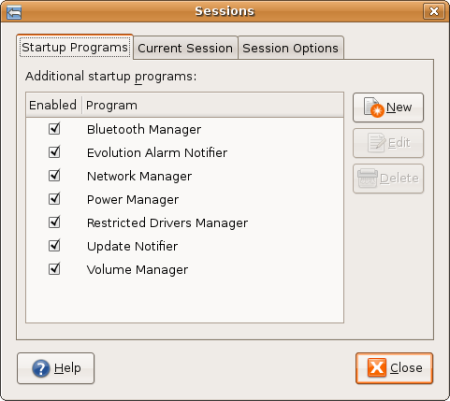
  • From the Desktop, Go to System > Preferences > Session,
  • Select Startup Programs, click “New”, and type in the command of your favourite application. Close the tab.
  • The application selected in the Startup Program dialog should automatically starts the next time you logged in your computer.
  • Mohammad Hafiz mypapit best

    Why do you need Startup Programs ?
    For convenience purposes. with Startup programs, you don’t have to manually launch your favourite application each time you logged into your Desktop environment which can become very laborious.

    This is very handy if you have a list of application that you need to start each time you log in to your Desktop such as Gaim/Pidgin, Ekiga, Feedreader and/or some application that you can’t live without.

    With Startup program, you can save your time from having to start these applications manually and save yourself from forgetting to start essential application each time you boot up your computer.

    [tags]ubuntu,debian,open source,opensource,feisty fawn, gutsy gibbon[/tags]

How to Setup Skype USB Phone to use with Ekiga (under Ubuntu)

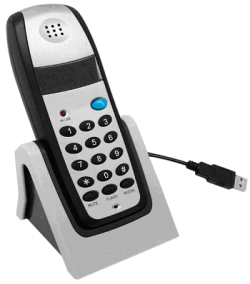
In this post I’ll show you how to configure commercially available Skype USB phone to use with your Ekiga softphone.

What do you need

  • a USB Skype phone
  • Ekiga (with registered account)
skypephone.png

Some Explanation on Skype USB Phone
If you have spend your time doing surveying and window shopping, you may already come across one of these USB products which offers the ‘phone’ feeling to your Skype application.

What some people does not aware of – these ‘Skype’ phone is merely a generic USB audio device built to look like a phone set. These generic chipsets are readily supported under Linux operating system without additional hardware drivers.

ekiga1tn.png

Instructions to use Skype USB phone in Ekiga

  • Plug in the Skype USB phone and start Ekiga Softphone application.
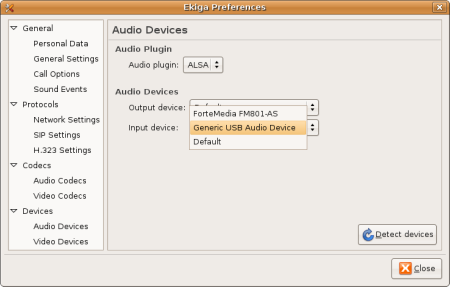
  • Go to Edit, Preferences.
  • Under Devices -> Audio Devices, select the appropriate audio device for your USB phone. In my case, It was “Generic USB Audio Device”. Close the Preference Dialog
  • Your should be able to use the Skype USB phone when calling using Ekiga!

p/s: Note that the keypad does not work with Ekiga in this case although through my inspection, 3 out of 3 USB phone keypad that I experimented on uses Microsoft Xbox xpad.c driver which can be use to interact with desktop application like Ekiga (it’s possible)

[tags]feisty fawn,ubuntu, ekiga, usb, skype, voip, gnome,open source, opensource[/tags]

How to get fastest Ubuntu apt-get repository server with Synaptic

Downloading software from repositories can be a long and daunting task especially when you are downloading from a repository server which is far from your location.

It even can turn out to be an annoying experience when your downloads keeps timing out because of the bad connection between you and the mirror server. Thus it is crucial for us to find the closest/fastest software repository in order to speed up the installation and upgrade process.

In this post I’ll show you how to get the fastest/closest repository server automatically using Synaptic. Here’s how :

First you need to start up Synaptic. Then go to Settings->Repositories.

synaptic1.png

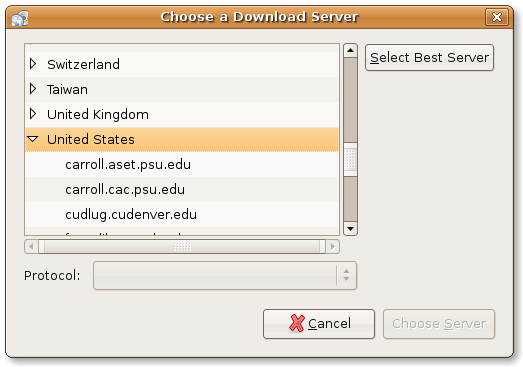
Click the Download From section, and Select ‘Other

synaptic2.png

Click “Select Best Server” button to enable synaptic to find the best and fastest repository server for you.

synaptic3.png

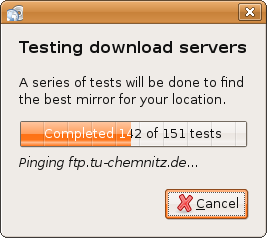
Synaptic will perform automated pinging, and It will select the fastest server based on its calculation. Its nice and easy!

[tags]ubuntu, debian, apt-get, repository, deb, repositories, synaptic,feisty,feisty fawn[/tags]

How to add Linux Swap file if you don’t have Swap Partition

Picture this, you’re running a lot of process that consumes a lot of memory that even your 2GB RAM is running out faster than you can blink your eye. Suddenly your machine slows down to a crawl, then it begin to hang, and all you can do is pray that you wont lose any valuable data should one of the process be killed.

You realised now that you should have allocate more space to that dwarfish 100MB swap partition, seems like it is too late as you need to repartition your hard disk to resize the swap partition to avoid this problem when running memory intensive program. All is lost…

Enter the Swap file…

Actually you can substitute a swap partition with swap files if you need more swap. What you need to do is create an empty file with the size of the swap that you preferred (for example 500MB) and add this information to your fstab.

How to add more Linux Swap with Swap File

Assuming you want to put it in “/”, Create an empty 500MB file
$ sudo dd if=/dev/zero of=/swap.img bs=1024k count=512

Format it as a swap file
$ sudo mkswap /swap.img

Add it to your running Linux system
$ sudo swapon /swap.img

Optionally you can add /swap.img to fstab for automatic swap activation.

$ sudo gedit /etc/fstab

Add this line at the end of the file
/swap.img none swap sw 0 0

Run “free -m” command to verify that you’ve added the newly created swap to your Linux based operating system.

Hope that helps!

[tags]linux,ubuntu,debian,opensource,open source,fstab,swap[/tags]

How to Get Detailed Information from Ubuntu Software Updates

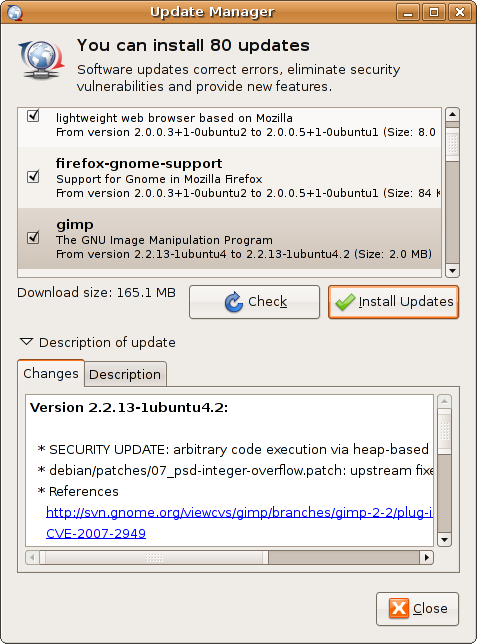
Users of Ubuntu Linux are probably already accustomed to Ubuntu update screen which appears when there are security or critical updates to the operating system.

A typical software update screen will display a list of softwares that require updates along with their release number. What most people would probably overlooked is the “Description of update” below the the list. Clicking it will reveal the description of the updates along with a brief explanation about security hole or bug that it fixes.

updatemanager.png

The expanded description also provide hyperlinks to the patch website which contains security advisory references to the aforementioned patch. This information would help users understand which bugs/security hole that has been eliminated with the current updates.

updatemanager3.png

[tags]ubuntu,security,debian,open source,opensource,linux,apt-get,synaptic,feisty fawn, feisty[/tags]