Lanmap – handy tool to map your Local Area Network (LAN) automatically

I discovered lanmap during my stay in a hotel during the Merdeka holidays. This little handy tool can generate local area network map in PNG,SVG and GIF format by listening to network traffic from network interfaces.

lanmap does this by putting network interface in promiscuous mode and representing the data its sees into a 2-d human-readable network graph. It has the advantage of identifying the network traffic being passed around the network along with the name and the operating system of the host which are represented on the graphical representation as well.

My House Local Area Network

lanmap2.png

Local Area Network from a Hotel that I stayed in

lanmap2.png

lanmap works under Linux, BSD, Windows and OS X operating systems. It requires libpcap library for capturing packets and graphviz visualization library to generate 2-d network graphs.

You can download lanmap from its official website. Lanmap is licensed under the GNU General Public License version 2.0.

[tags]lanmap,network,nmap,ubuntu,ethernet,internet,ubuntu,linux,feisty[/tags]

How to write into NTFS partition in Ubuntu

As disk storage capacity increases over time, more and more Microsoft Windows user prefer to choose NTFS over FAT32 as their primary filesystem as the latter is inefficient in handling large storage capacity.

Unfortunately by default, Ubuntu only mounts NTFS volume as read-only, preventing users from transferring files between their Linux and Windows partitions.

How to mount writable NTFS partitions
However now you can easily mount writable NTFS partitions easily with ntfs-3g filesystem driver. Here’s how to do it under Ubuntu.

ntfs3gtn.png
  1. First from the Desktop, go to System->Administration->Synaptic Package Manager. Search for ntfs-3g and install it. Close synaptic once it finished with installation.
  2. The next step would involve editing /etc/fstab file to use ntfs-3g filesystem driver. From the Desktop, press ALT-F2, type “gksudo gedit /etc/fstab”
    runapp.png

  3. Find lines with ‘ntfs’ and replace it with ‘ntfs-3g’ and save the file
  4. Remount all ntfs partitions to test the modification, the easiest way to do it is to reboot the computer and try copying file into ntfs partition using the default Gnome file browser (Nautilus). You’re done!

[tags]ntfs,filesystem,windows,opensource, linux, ubuntu, gutsy, feisty,feisty fawn, gutsy gibbon,open source[/tags]

The Next Ubuntu 8.04 release announced, Hardy Heron

The next Ubuntu release after the upcoming Gutsy Gibbon was announced in the Ubuntu Fridge yesterday.

Schedule to be released sometimes next year, Ubuntu 8.04 (Hardy Heron) will be the next release with Long Term Support (LTS) after Dapper Drake. This means Hardy Heron server installations will be supported up to 2013 after it release date on April 2008.

Please refer to the Ubuntu Wiki page for Ubuntu 8.04 (Hardy Heron) release schedule

[tags]ubuntu,gutsy gibbon,dapper drake,dapper,linux,debian,open source[/tags]

I’ve travelled 8888 kilometers w00t !

At least my car did, I first thought my odometer was acting out, but soon realised that I’ve travelled 8888 kilometers with my trusty kancil 850cc car.

Here’s the photograph of my odometer :

meter2.jpg
meter1.jpg

[tags]car,odometer,speedometer,compact car,travel,travelled,travelling,cars[/tags]

I got myself a new and flexible Printer – HP Officejet 5680 All in One !

After my first printer reached its end of life status (meaning that it has become too expensive to maintain it), I decided to buy a new printer. I haven’t bought a new printer for almost 6 years, I think I want to spend on a reliable and flexible printer.

After two weeks of window shopping, I decided to get the HP Officejet 5680 series, because I really wanted to have an ‘office look’ for my desk+workstation (yeah, I’m thinking of running my own business seriously).

officejet5680.jpg

Among its features are :

  • 20 page per-minute printing speed (draft mode)
  • Photo/transparency printing capabilities
  • Flatbed Scanner
  • Copier capabilities (enlarge, reduce size)
  • Fax capabilities (33.6kbps max speed)
  • Fax Junk number banning
  • Phone (with Caller-ID)

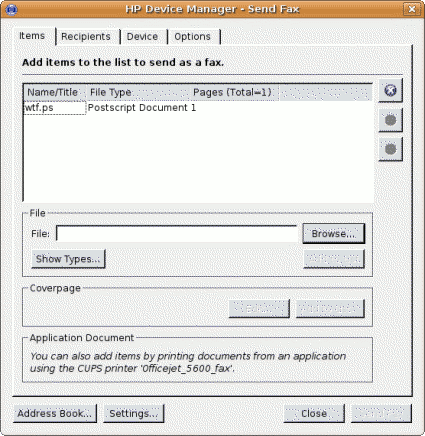
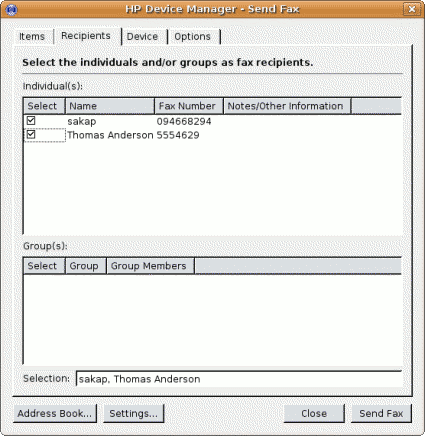
To summarize it, HP Officejet printer has all feature that I need to start my own SOHO business with functionalities that one expected to run day-to-day task. Best of all, the printer (CUPS) and scanner (sane) works well on Ubuntu (Feisty Fawn), w00t!

I’ve tested most of the feature of this little gizmo and is impressed with its performance, If you ever want to start a small-business like me, I would recommend you to get one too!

Recommended Product
Now you can do it all-print, all-print, phone, fax, copy and scan — from this compact, versatile all-in-one solution from HP. Create professional presentations and brochures with laser-quality black text, plus optional 6-ink and 4,800 optimized dpi color when you print and copy color documents. Send important faxes quickly and eliminate unwanted faxes using junk-fax barrier. Conveniently copy, scan and fax multiple pages with 25-sheet auto document feeder.

[tags]officejet,hp,printer,scanner,ubuntu,linux,debian,fax[/tags]