Local Malaysian Artist, Yuna is currently featured in Google Material Design Guideline.

You can view the screenshot in UI Integration Imagery Style Section: Google Material Design GUideline

Free and Open Source blogger with an attitude
Local Malaysian Artist, Yuna is currently featured in Google Material Design Guideline.
You can view the screenshot in UI Integration Imagery Style Section: Google Material Design GUideline
This is a a guide to integrate Telegram messaging service Fail2Ban. With this integration, Fail2Ban notification will be sent through Telegram services.

After installing ‘telegram-cli’ and its requirements, you should proceed to add ‘telegram.conf’ config in /etc/fail2ban/action.d
The content of “telegram.conf“ is as follows.
#
# /etc/fail2ban/action.d/telegram.conf
#
# Author: Toon Ketels
# Modified by: Mohammad Hafiz bin Ismail [mypapit @gmail.com]
#
# $Revision$
#

[Definition]

# Option:  actionstart
# Notes.:  command executed once at the start of Fail2Ban.
# Values:  CMD
#
actionstart = /usr/share/fail2ban/fail2ban-telegram.sh start

# Option:  actionstop
# Notes.:  command executed once at the end of Fail2Ban
# Values:  CMD
#
actionstop = /usr/share/fail2ban/fail2ban-telegram.sh stop

# Option:  actioncheck
# Notes.:  command executed once before each actionban command
# Values:  CMD
#
actioncheck =

# Option:  actionban
# Notes.:  command executed when banning an IP. Take care that the
#          command is executed with Fail2Ban user rights.
# Tags:    [ip]  IP address
#          [failures]  number of failures
#          [time]  unix timestamp of the ban time
# Values:  CMD
#
actionban = /usr/share/fail2ban/fail2ban-telegram.sh ban [ip]

# Option:  actionunban
# Notes.:  command executed when unbanning an IP. Take care that the
#          command is executed with Fail2Ban user rights.
# Tags:    [ip]  IP address
#          [failures]  number of failures
#          [time]  unix timestamp of the ban time
# Values:  CMD
#
actionunban = /usr/share/fail2ban/fail2ban-telegram.sh unban [ip]

[Init]

init = 'Fail2Ban Telegram plugins activated"
Then, you need to create a script file in “/usr/share/fail2ban/fail2ban-telegram.sh“.
#!/bin/bash
# /usr/share/fail2ban/fail2ban-telegram.sh
#
# Sends text messages using telegram api
# to alert server administrator of ip banning.
#
# Requires one argument, one of the following:
#  start
#  stop
#  ban
#  unban
#
# Optional second argument: IP for ban/unban


#replace this with your own telegram contact

to=Telegram_peer_replace_this

# Display usage information
function show_usage {
  echo "Usage: $0 action [ip]"
  echo "Where action is start, stop, ban, unban"
  echo "and ip is optional passed to ban, unban"
  exit
}


# Actually send telegram messages
# Expects the telegram content (body) to be passed
# as argument.
function send_telegram {

  msg="[`date -Iminutes`] - `hostname`:  Notice: $1 "
  echo "$msg" >> /var/log/fail2ban-telegram.log
 (echo "contact_list";sleep 30;echo "msg $to $msg"; echo "safe_quit") | telegram-cli
  exit
}


# Check for script arguments
if [ $# -lt 1 ]
then
  show_usage
fi


# Take action depending on argument
if [ "$1" = 'start' ]
then
  message="Fail2ban just started."
  send_telegram "$message"
elif [ "$1" = 'stop' ]
then
  message="Fail2ban just stopped."
  send_telegram "$message"
elif [ "$1" = 'ban' ]
then
  message=$([ "$2" != '' ] && echo "Fail2ban just banned $2" || echo 'Fail2ban just banned an ip.' )
  send_telegram "$message"
elif [ "$1" = 'unban' ]
then
  message=$([ "$2" != '' ] && echo "Fail2ban just unbanned $2" || echo "Fail2ban just unbanned an ip." )
  send_telegram "$message"
else
  show_usage
fi
After that, you need to ensure that the script is executable, by running.
sudo chmod a+rwx /usr/share/fail2ban/fail2ban-telegram.sh
Then, you need to edit “/etc/fail2ban/jail.conf” file to hook the action plugin with events. In this case, I choose the ssh and sshd events.
sudo nano -c /etc/fail2ban/jail.conf
Then proceed to find the [ssh] and [ssh-ddos] part. Add ‘telegram’ config in the file. Replace the “webmaster@example.com” email address with your email address.
[ssh]

enabled  = true
port     = ssh
filter   = sshd
logpath  = /var/log/auth.log
maxretry = 3
action = mail-whois[name=SSH, dest=webmaster@example.com]
         telegram
Now go to the “ssh-ddos” section, repeat the same step.
[ssh-ddos]

enabled  = true
port     = ssh
filter   = sshd-ddos
logpath  = /var/log/auth.log
maxretry = 4
action = mail-whois[name=SSH, dest=webmaster@example.com]
         telegram
Finish up by restarting fail2ban server, and if you done it correctly you will be receiving both telegram messages and email notification regarding fail2ban startup!
sudo service fail2ban restart
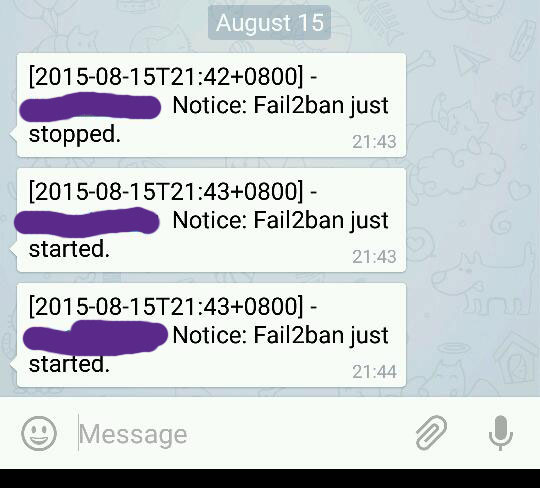
Congratulations!!
I’ve compiled an easy to install Ubuntu *.deb package for telegram-cli.
Install *.deb package by running this command (on Ubuntu 14.04 LTS Trusty)
sudo apt-get -y install  libjansson4
sudo dpkg -i telegram-cli_1.0.6-1_amd64.deb
Running telegram-cli is as easy as typing
telegram-cli
For first time login, you may need to key in the authorization code, the code will be sent to your mobile device to allow ‘telegram-cli’ to log as your username.
Once the authorization CODE has been entered, you are free to use telegram. Telegram use the concept of ‘peer’ (contact) to send messages instead of phone number. So in order to get a list of your peer, you need to run “contact_list” command.
> contact_list
John_T_Doe
Jane_doe_2
Warrick_Brown
Mark_Nelson
To send message to a peer/contact (for example to Warrick Brown), just type
> msg Warrick_Brown "wassup, dude? want to hang out today?"
To quit, you can type
> safe_quit
I hope it is the rumored granular permission mode. But if it resembles anything in this SMH article, then it sounds like JavaME permission model all over again :p
Marshmallow also streamlines the “permissions” model for users to install and upgrade apps.
Users running certain apps will not need to grant any permissions when they install or upgrade, and the applications instead request permissions as it needs them.
You can actually send Telegram message from command-line interface / bash in Linux using an unofficial “telegram-cli“ client by Vitali Valtman (vysheng)
But first, before sending telegram messages, you need to build the client. You may start by installing its dependencies
sudo git apt-get install libreadline-dev libconfig-dev libssl-dev lua5.2 liblua5.2-dev libevent-dev libjansson-dev libpython-dev make
Then, you can get the latest telegram-cli client from vysheng GitHub
git clone --recursive https://github.com/vysheng/tg.git && cd tg
Afterwards, you may configure ‘telegram-cli’ and compile it
./configure
make
Alternative Download
Alternatively, you can download Telegram source code from my server:
After finished compiling telegram-cli, you may try and start using telegram.
bin/telegram-cli -k tg-server.pub
For first time use, you may need to key in the authorization code, the code will be sent to your mobile device to allow ‘telegram-cli’ to log as your username.
bin/telegram-cli -u -k tg-server.pub
In my experience you may need to replace the +[country_code] phone-number with ’00’. so if your phone number includes country code is +60123456789, then you must replace it with 0060123456789 (however, your mileage may vary.
bin/telegram-cli -u 00123456789 -k tg-server.pub
Once the authorization CODE has been entered, you are free to use telegram. Telegram use the concept of ‘peer’ (contact) to send messages instead of phone number. So in order to get a list of your peer, you need to run “contact_list” command.
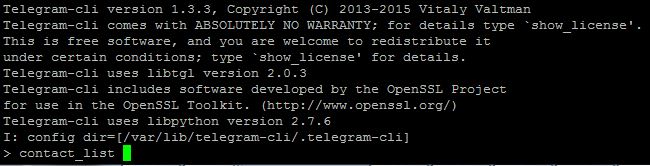
> contact_list
John_T_Doe
Jane_doe_2
Warrick_Brown
Mark_Nelson
To send message to a peer/contact (for example to Warrick Brown), just type
> msg Warrick_Brown "wassup, dude? want to hang out today?"
To quit, you can type
#telegram-client
> safe_quit
NOTE: IF YOU FAIL TO COMPILE TELEGRAM FROM GITHUB
If you find it difficult or failed to compile telegram-cli from GitHub, then you can download this telegram-cli source code from my server which is tested to compile under Raspbian Jessie, Debian Jessie, Ubuntu 14.04 LTS and Ubuntu 16.04 LTS.
Alternative Telegram source code:
Here is some solution for overheating Wireless Router. Note that I do not own any of these photos.




Source: http://www.boransat.net/board/index.php?topic=28537.0