
Revisiting Midnight Commander: A Classic Linux File Manager

Some Linux tools bring back memories as soon as you open them. Midnight Commander is one of those tools. Its familiar blue panels, text menus, and function keys recall the days when managing files in a terminal was an ordinary part of using a computer.

Known simply as mc, GNU Midnight Commander is a terminal file manager with two directory panels. Open your source folder on one side and the destination on the other, then browse and copy files using the keyboard.
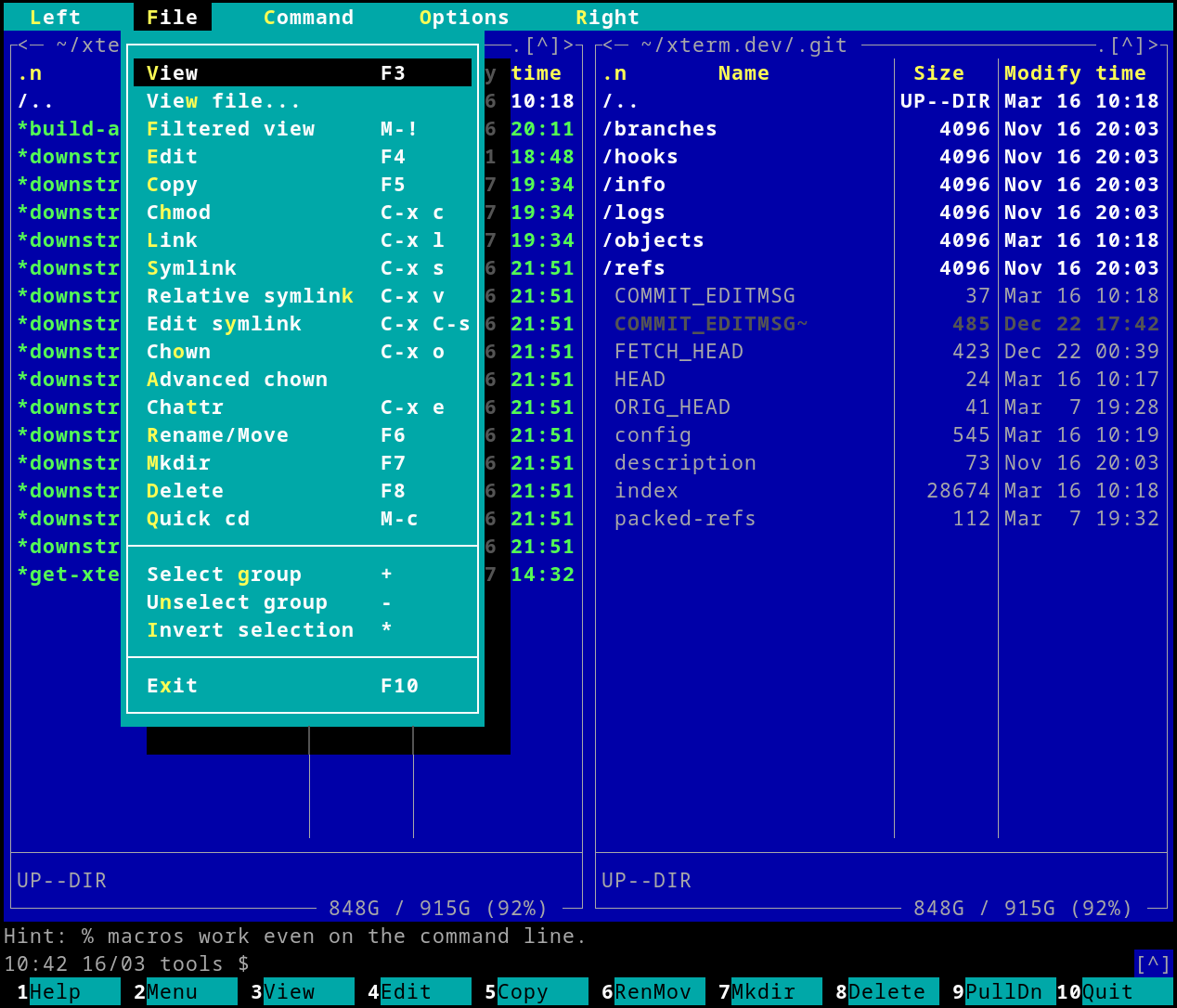
Midnight Commander showing two directory panels and a function key menu in the terminal
Midnight Commander’s familiar two-panel interface. Screenshot from the official Midnight Commander project website.

The appeal of those blue panels

For anyone who remembers DOS-era file managers, this layout feels familiar. The available actions appear along the bottom of the screen, and the keyboard does most of the work. There is something satisfying about seeing both folders at once and moving through them without repeatedly typing ls and cd.

Midnight Commander also remains useful when working on a Linux server through SSH. It runs inside the terminal, so you can browse directories, inspect files, and organise folders without opening a graphical desktop. It includes a file viewer and an editor, too.

How to install Midnight Commander on Ubuntu

Install it using Ubuntu’s package manager:

sudo apt update
sudo apt install mc

Then launch it:

mc

Start with these shortcuts, documented in the official manual:

Key Action
Tab Switch between panels
F1 Open help
F3 View a file
F4 Edit a file
F5 Copy files
F6 Move or rename files
F7 Create a directory
F8 Delete files
F10 Quit

Modern desktops have changed how we manage files, but this old style still has its appeal. Two panels, clear actions, and a keyboard within reach are enough to make routine file management comfortable. If you have not used Midnight Commander for years, try typing mc again.

References

3 ways to get Linux release information from bash terminal

Let’s say you’ve manage to get yourself into a GNU/Linux bash terminal. What can you do in order to determine its distro and release information? Listed here are the three methods to get release information of a running GNU/Linux box.

lsb_release method
You can type “lsb_release -a”

Cat /etc/proc/release method

/etc/*release and /etc/*issue method
Alternatively, you could try typing “cat /etc/*release” or “cat /etc/*issue”.

Cat /etc/proc/release method

/proc/version method
If else fails, you could always try the “cat /proc/version” method to see where the kernel came from.

Cat /etc/proc/release method

Hope this would help!

vrms – check your Ubuntu for Non-free packages (Virtual Richard M Stallman)

vrms is an application that checks for non-free packages or components installed in your Debian-based system (including Ubuntu) and subsequently display a statistic of how many percentage of your system is non-free.

vrms can be installed using Synaptic Package Manager :

VRMS - Virtual Richard Stallman

To execute it, just type “vrms” in the terminal, here’s an example of vrms output for my system :
[javascript]
mypapit@mypapit-desktop:~$ vrms
Non-free packages installed on mypapit-desktop

bsdgames-nonfree rogue, the classic dungeon exploration game
Reason: No commercial use
fglrx-modaliases Identifiers supported by the ATI graphics driver
latex2html LaTeX to HTML translator
linux-generic Complete Generic Linux kernel
linux-restricted-modules- Non-free Linux 2.6.28 modules helper script
linux-restricted-modules- Restricted Linux modules for generic kernels
nvidia-173-modaliases Modaliases for the NVIDIA binary X.Org driver
nvidia-180-modaliases Modaliases for the NVIDIA binary X.Org driver
nvidia-71-modaliases Modaliases for the NVIDIA binary X.Org driver
nvidia-96-modaliases Modaliases for the NVIDIA binary X.Org driver
rar Archiver for .rar files
sun-java6-bin Sun Java(TM) Runtime Environment (JRE) 6 (architecture
sun-java6-demo Sun Java(TM) Development Kit (JDK) 6 demos and example
sun-java6-jdk Sun Java(TM) Development Kit (JDK) 6
sun-java6-jre Sun Java(TM) Runtime Environment (JRE) 6 (architecture
sun-java6-plugin The Java(TM) Plug-in, Java SE 6
tangerine-icon-theme Tangerine Icon theme

Contrib packages installed on mypapit-desktop

jetty Java servlet engine and webserver
nvidia-common Find obsolete NVIDIA drivers
openttd reimplementation of Transport Tycoon Deluxe with enhan

17 non-free packages, 1.1% of 1601 installed packages.
3 contrib packages, 0.2% of 1601 installed packages.
[/javascript]

So if you prefer a completely free (as in freedom!) operating system, you can use install gNewsense instead of Ubuntu.