
Home Assistant is one of the most practical platforms for building a local smart home system. It can connect sensors, switches, cameras, MQTT devices, smart plugs, Zigbee devices, dashboards, and automation rules in one place.
For Ubuntu 26.04, one clean way to install it is by using Home Assistant Container with Docker Compose. This keeps the setup simple, portable, and easy to update. Home Assistant officially supports the container installation method, but note that this method does not include Home Assistant OS apps or Supervisor features. You manage the container yourself.
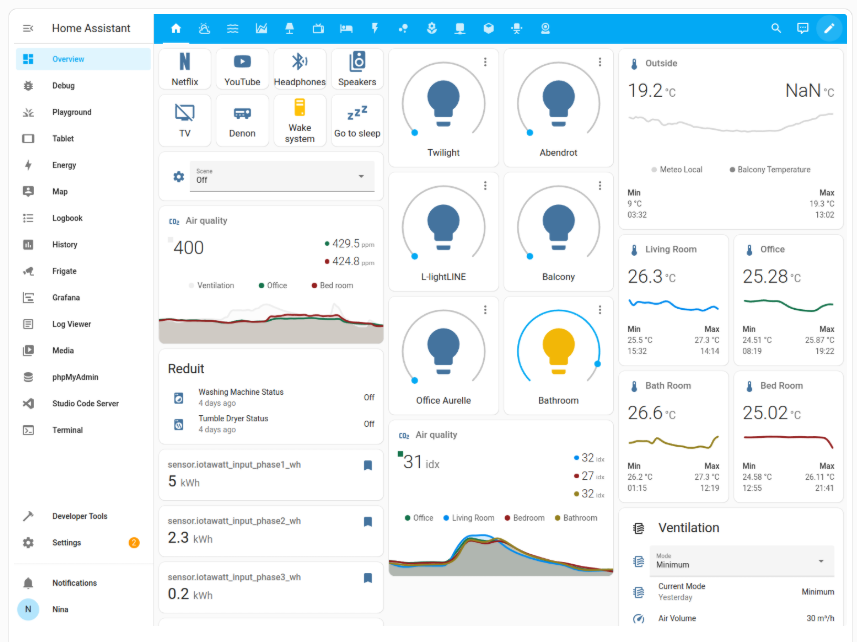
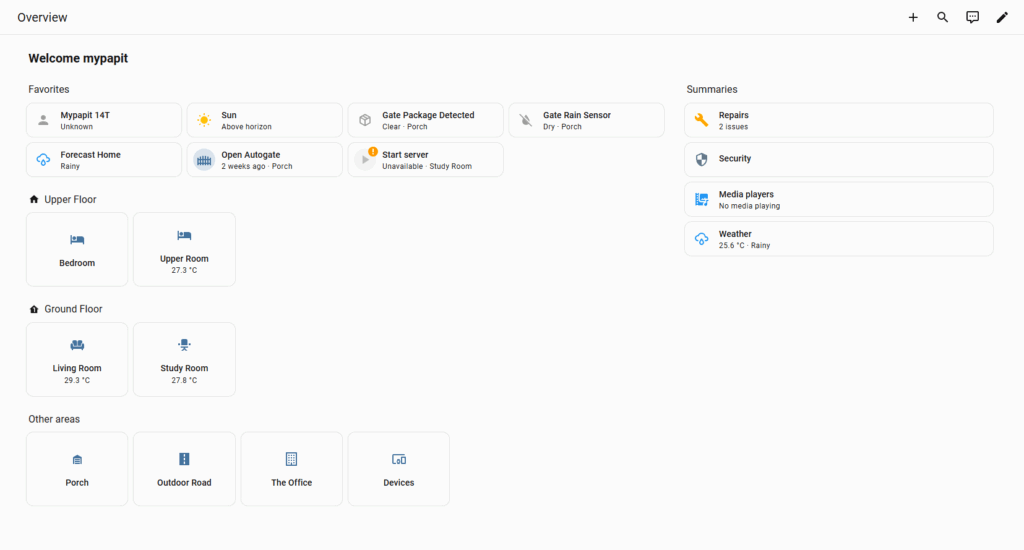
Screenshots
Step 1: Setting up docker container
sudo apt update
sudo apt upgrade -y
Install required packages:
sudo apt install ca-certificates curl -yAdd Docker’s official GPG key and repository:
sudo install -m 0755 -d /etc/apt/keyrings

sudo curl -fsSL https://download.docker.com/linux/ubuntu/gpg \
-o /etc/apt/keyrings/docker.asc

sudo chmod a+r /etc/apt/keyrings/docker.asc

sudo tee /etc/apt/sources.list.d/docker.sources <<EOF
Types: deb
URIs: https://download.docker.com/linux/ubuntu
Suites: $(. /etc/os-release && echo "${UBUNTU_CODENAME:-$VERSION_CODENAME}")
Components: stable
Architectures: $(dpkg --print-architecture)
Signed-By: /etc/apt/keyrings/docker.asc
EOF
Then install Docker Engine and Docker Compose plugin
sudo apt update
sudo apt install docker-ce docker-ce-cli containerd.io docker-buildx-plugin docker-compose-plugin -y
Docker’s official documentation lists Ubuntu 26.04 LTS as a supported Ubuntu release for Docker Engine, and recommends installing Docker from its official apt repository.
sudo systemctl status dockerStep 2 Create Home Assistant Folder
Create a folder to store the Home Assistant configuration:
sudo mkdir -p /opt/homeassistant/config
sudo chown -R $USER:$USER /opt/homeassistant
cd /opt/homeassistant
This folder is important because your Home Assistant settings, integrations, dashboards, and YAML files will be stored here.
Step 3. Create Docker Compose File
nano compose.yamlPaste this configuration
services:
  homeassistant:
    container_name: homeassistant
    image: ghcr.io/home-assistant/home-assistant:stable
    volumes:
      - /opt/homeassistant/config:/config
      - /etc/localtime:/etc/localtime:ro
      - /run/dbus:/run/dbus:ro
    restart: unless-stopped
    privileged: true
    network_mode: host
    environment:
      TZ: Asia/Kuala_Lumpur
Home Assistant recommends network_mode: host for the container setup, because many smart home integrations rely on local network discovery. The official container guide also shows the /config volume, D-Bus mapping, privileged mode, and Docker Compose structure
Start Home Assistant:
docker compose up -dCheck the logs:
docker logs -f homeassistantThen you can try and access your Home Assistant from your browser
http://YOUR_SERVER_IP:8123
http://192.168.1.50:8123
If you are running UFW firewall, allow port 8123
sudo ufw allow 8123/tcpAdditional Tips:
For an Ubuntu Docker setup, integrations that depend on USB hardware, such as Zigbee dongles, may need device mapping. For example:
devices:
  - /dev/ttyUSB0:/dev/ttyUSB0
Updating Home Assistant
You can periodically execute this to update Home Assistant docker container:
cd /opt/homeassistant
docker compose pull
docker compose down
docker compose up -d