How to install software/applications in Ubuntu Linux

If you are new in using Ubuntu or GNU/Linux and still have no idea on how to install software in your Ubuntu PC, then you might find this link helpful to you, How to install ANYTHING in Ubuntu!

The link consist of several basic graphical guide specially made for users with Windows background with the main aim is to guide users to install software for Ubuntu Linux. The guide answers common questions such as “Where’s the EXE?”, “Where do I need to extract this to?”,”How do I run it?” and “Where did it go?”.

The guide also includes Appendix that contains additional information on how to enable extra repositories, how to use terminal and creating an application launcher (application shortcut icon in Windows).

So hope that you enjoy reading it ! – How to install ANYTHING in Ubuntu!

p/s : for serious people who prefer to read a book about Ubuntu Linux, then I suggest you get one of these book from Amazon at a low price :

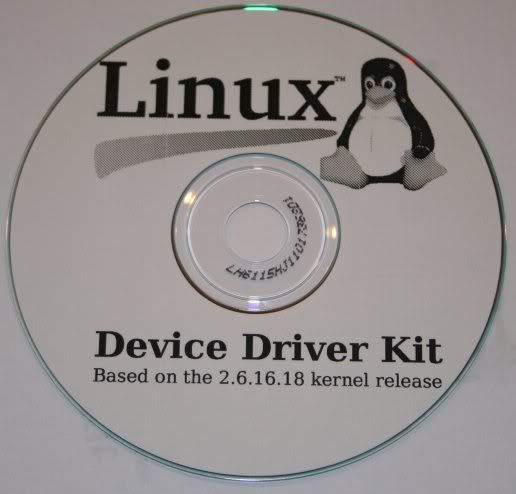
Linux Device Driver Kit Released!

The Linux Device Driver Kit (DDK) release has been announced by Greg Kroah-Hartman on Wednesday. Linux DDK is created to fill the void of not having DDK with documentations and sample source code provided by other popular operating system.

The device driver kit was released in coordination with the FreedomHEC conference in Seattle, which aims to educate and encourage hardware developers about making their hardware compatible with Linux and other free operating systems. Attendees of the conference will receive free copy of Linux DDK on physical media.

The Linux Device Driver Kit contains Linux Device Drivers, third edition book, Linux kernel 2.6.16.18 source code, a set of Howtos and recommended procedures for submitting and patching device drivers, and a library of architecture- and device-specific technical references.

The Linux DDK CD image is also available for download at kernel.org, the CD image is licensed under the GNU General Public License (GPL) for free redistribution.

from Newsforge,Greg Kroah-Hartman blog

Burn DVD RW in Ubuntu or Debian GNU/Linux

I know some of you might already familiar with k3b, gcombust or xcdroast for burning DVD in GNU/Linux. But this time i’m going to show you how to burn a DVD using command-line tool in Linux using Ubuntu or Debian GNU/Linux as reference.

Why use command-line tool to burn DVD RW ?

  • Because you might want to save space by not installing unnecessary gui application that takes up a lot of libraries.
  • You don’t have Xwindows installed
  • You just want to impress your friends (and enemies), you surely look 1337 infront of them.

What do you need ?

  • A GNU/Linux distro (preferably Debian GNU/Linux or Ubuntu)
  • dvd+rw-tools package
  • DVD Writer drive is highly recommended though not required
  • Some positive attitude

Getting the required tools to burn DVD

Install dvd+rw-tools. As root (in Debian or Ubuntu) execute this command,

#apt-get install dvd+rw-tools

Initialise the DVD+RW

Do this only when you want to clear out all contents.

#dvd+rw-format /dev/scd1

Copy some files/director from local directory to DVD RW

#growisofs -Z /dev/scd1 -R -J /home/mypapit/somestuffs

Write some more stuff to an initialized DVD+RW

#growisofs -M /dev/scd1 -R -J /home/mypapit/books

There you go, how to burn DVD RW under GNU/Linux.

Final question, I don’t run Linux. What are my options?

dvd+rw-tools is also available in OpenBSD/NetBSD and FreeBSD from port contributed by Matthew Dillon.

[Source]

Linux App Finder – Helps you find GNU/Linux apps for you

Have you been in this situation where you need to do something under GNU/Linux like ripping audio cd but don’t know the name of applications to use?

Then Linux App Finder might have the answer for you! The website lists Linux applications sorted in category according to its functionality. The list is frequently updated with new applications and new version information.

The Motivation

The author of the website started this project because he had problem of finding good programs to accomplish some of the same tasks he was already doing before he switched from Windows to Linux. So, he created Linux App Finder to help others to find suitable Linux applications to accomplish day-to-day task.

Helping the website

Linux App Finder is a nice project that can help people to find free and open source applications to accomplish tasks in free operating system. If you know of a good program that is not in Linux App Finder database, then you can send them the name and website of the program to be included in the website.

That’s all for now folks…

Visit : Linux App Finder

Linux App Finder

Burn DVD video using any video files (avi, mpg, etc) under Linux

Last week, I was thinking of burning my collections of avi (xvid encoded) files into DVD, but the problem is I don’t know how to do it under GNU/Linux and what kind of tools that I need (if any exists).

Fortunately, I found a nice well written article about converting video files to DVD format using open source tool at Linux.com. The task is accomplished by using Mplayer, mencoder and dvdauthor, which is common in various GNU/Linux distributions.

Enjoy the article ! – Convert any video file to DVD
with open source tools

Linux Laptop that cost $100

$100 laptop, sounds crazy, but it’s feasible to get one. Enter One Laptop per Child, non-profit association dedicated to research to develop a $100 laptop. It’s objective is to provide children around the world with new opportunities to explore, experiment, and express themselves.

Although at first glance, it seems like impossible to build a $100 laptop, the project persist on using readily available cheap materials and rationalised that laptops nowadays are bloated with redundant features.

The project has made significant achievement when its first generation prototype boots GNU/Linux complete with full working desktop. The second generation design is in plan and will use a more power-efficient integrated Geode-based AMD chip.

Here’s the hardware specification for building $100 laptop : Harware specifications

Kinda remind me of Steve Wozniak and his first Apple I computer.